DesKilo

Setup Guide

DesKilo — build your space, step by step. For the person who is about to create a coworking space, an association's room or a shared office, and wants to know what is possible, what is necessary and in which order.

I am

Open DesKilo

How to use this guide

OwnerCo-ownerAdministratorOperator

This guide explains the why, the order and the consequences of setting a space up. The clicks themselves are in the User Guide; each section here links to the exact place. The running example is the demo space, Atelier du Marché in Pézenas: an association with a room, a handful of desks and a monthly membership. Its people and figures are invented.

Three levels, in this order

Level What you do How long
Open A place, opening times, the people who approve, an invitation. At the end members can book. about 20 minutes
Run Roles, tariffs, payments, notifications. At the end the space can live from day to day. an afternoon, spread over days
Grow Invoicing and tax, reports, a kiosk at the door, analytics, assistants. Only when you need them. when the time comes

Only Open is required to start. Stop after any level: nothing forces you on.

Pick your path

You want… Start here
To know what DesKilo can do and what to prepare Before you start
A place members can book, today Build the place
To say who may do what, and who approves The role matrix
To charge for membership Money
To tell members what is happening Notifications
To issue invoices and declare VAT Invoicing · VAT
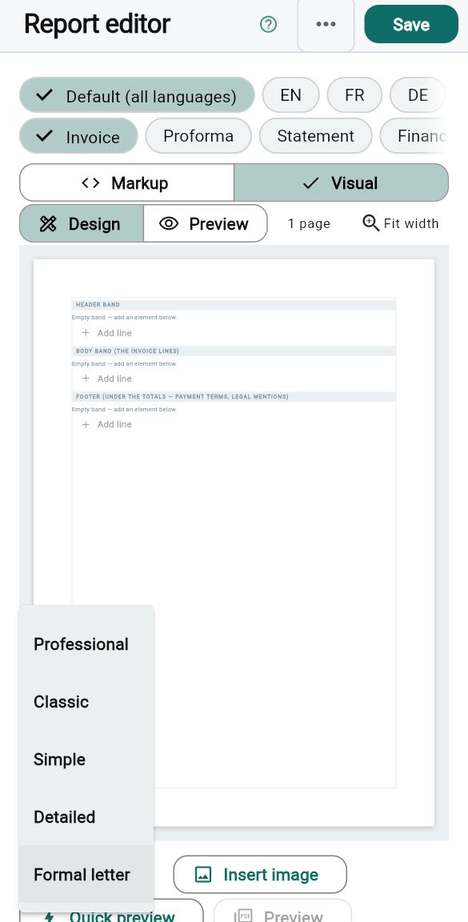
A wall tablet, reports or analytics Kiosk · The report editor · Business analytics
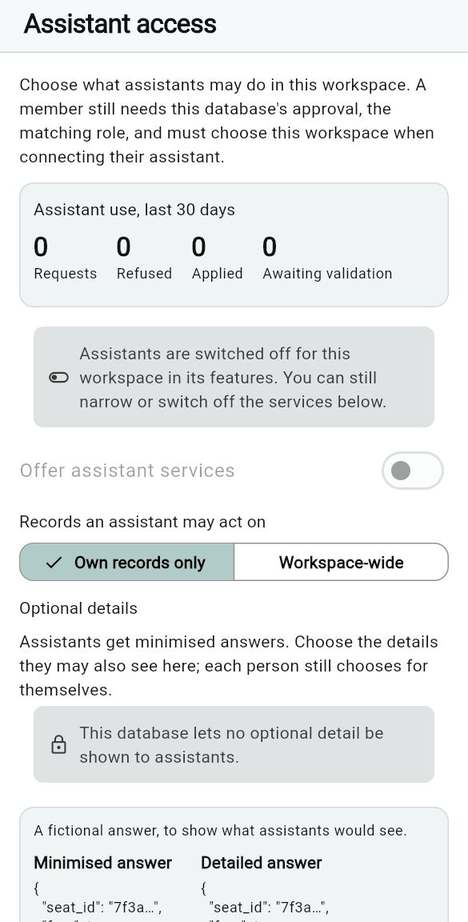
To let an assistant act for you Assistants

Two companions

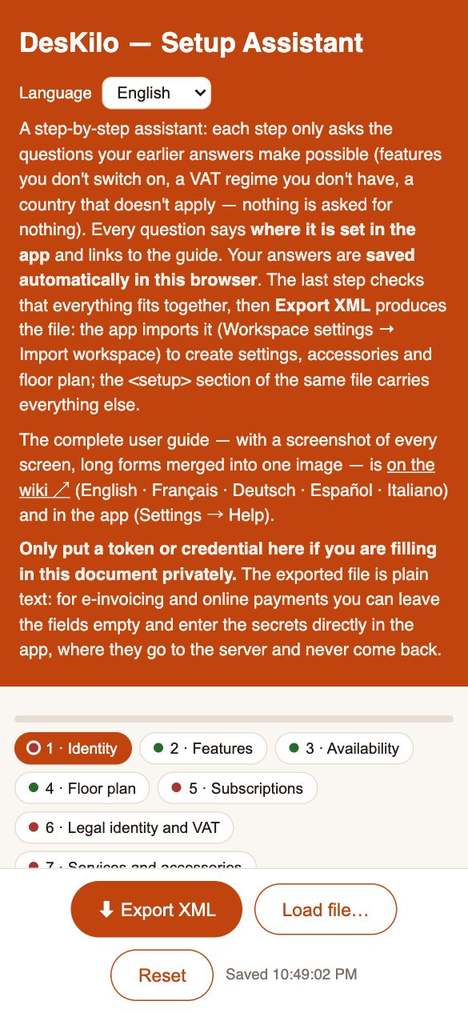
  • The setup wizard page (setup.html) lets you prepare everything in your browser before you touch the app: answers are saved in the browser, nothing is sent anywhere, and you can export a file the app reads. It is the best place to think with your accountant. See Prepare a space with the setup questionnaire.
  • The demo workspace lets you practise first, with nothing real at stake. See The demo workspace.

Good to know

  • Every section names its audience in the second line, so you can skip what is not yours.
  • A block that starts with Careful marks a decision that becomes hard to undo, and says when.
  • This guide never certifies anything legal or fiscal: it says what the app does and what to confirm with an accountant.
How to use this guide
Chapter 01

Before you start

A little preparation saves you the two things that cost most later: retyping, and decisions you cannot take back. This chapter shows what DesKilo does, what you really need to open, and what to have at hand.

In this chapter:

What DesKilo can do

OwnerCo-owner

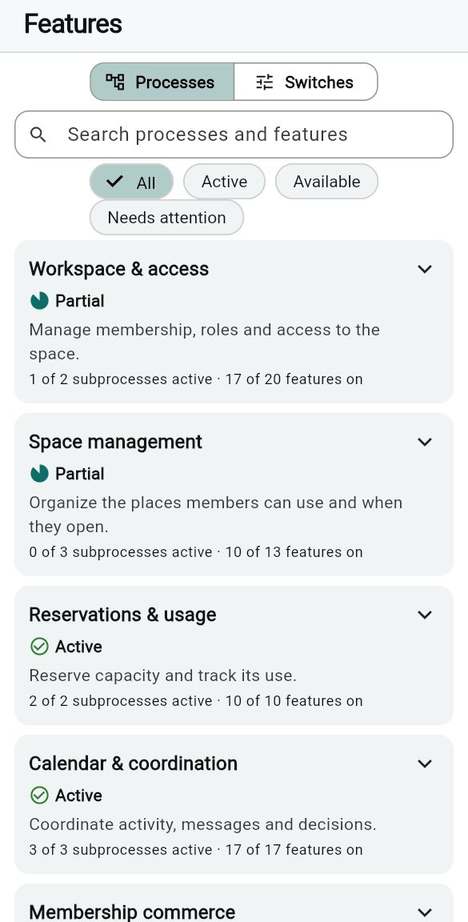
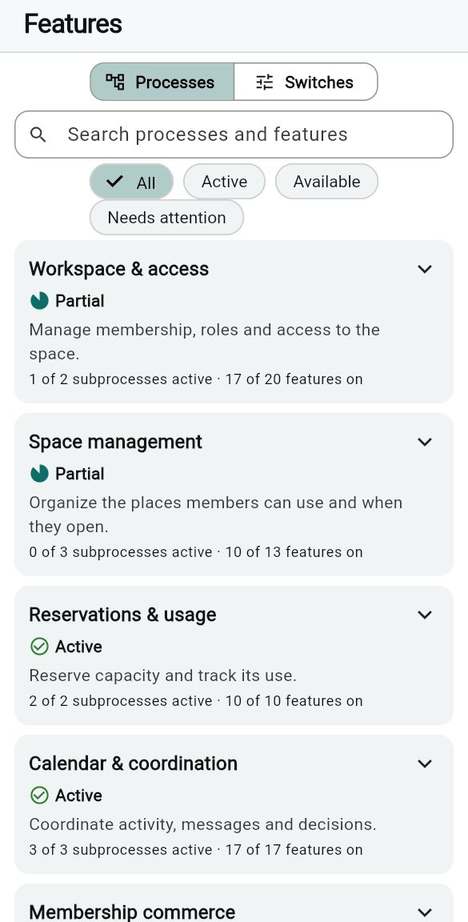
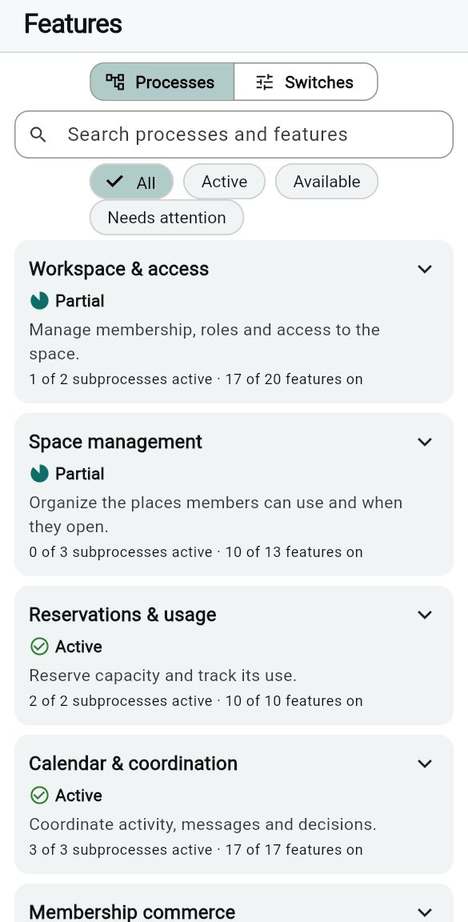
You want a picture of the whole before you choose anything. DesKilo groups its features into nine processes; the Features screen shows one card per process with its state.

The nine processes, in plain words

Process What it gives a member
Workspace & access A way in: join with the workspace ID, a role, a badge.
Space management A place that looks like the real one: floors, rooms, desks, opening times.
Reservations & usage Booking a desk or a room, checking in and out, seeing what is free.
Calendar & coordination A calendar, messages and requests that someone confirms.
Membership commerce A plan, service prices and agreements.
Billing & payments A statement, invoices, payment, reminders, VAT.
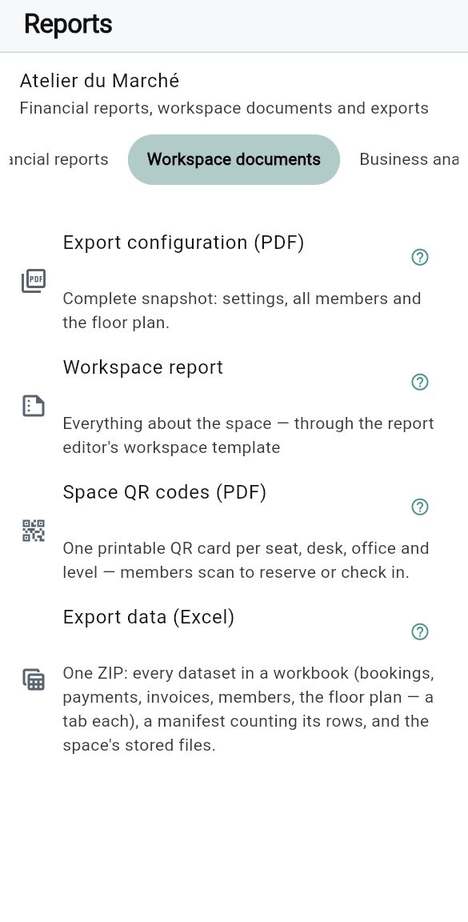
Documents & information Documents to read, reports to print, their own data to export.
Operations & administration A space that carries its own colours and words.
Integrations & automation Notifications and documents delivered through outside services.

Good to know

  • A new space starts with a sensible set of features on; you do not have to decide on them one by one. Switching a feature off stops new business only and deletes nothing.
  • A feature that needs another one switches it on with it, and the screen names what came on. See A feature switch.
  • Features marked alpha or beta ask for your consent when you switch them on.

See also: Switch features on and off

What DesKilo can do

What is necessary and what is optional

OwnerCo-ownerAdministrator

You want to know the shortest road to a space people can book. The app keeps a readiness list called Setting up this space and, on the Reserve screen, tells owners Before anyone can book here what is missing.

What must be there before the first booking

  1. Opening days, time zone and currency: a time zone, a currency and at least one open weekday.
  2. Bookable places on the floor plan: at least one seat.
  3. Roles and who validates requests: counted only when a validation rule, of any kind, asks for more validators than the space has. A rule asking for two approvals with only you in the space would leave requests waiting for ever.
  4. What members may do: members hold Book and use reservations. A new space grants them nothing, so a member who joins cannot book until you tick it in Roles.

One more row, Server and database version, blocks only when the server is behind this app; it then waits for the server operator. And while Invoices is on, The space's legal identity and address is required too: the list marks it Needed before invoicing, because no invoice can be issued without it.

What is optional, and can be set aside for later

  • Membership plans and tariffs
  • Invite the first members
  • How members pay
  • Export and recovery
  • Details your features need (identity, bank, platforms)
  • A first booking

Each of these can be set aside with Later and brought back; the list says whether a step is Needs configuration, Ready, Not needed here or Waiting for someone else. Two more states exist: Not verified yet (Export and recovery turns Ready only after a real export in the last 90 days) and a row that could not be read.

Good to know

  • The list names who acts: You, The server operator or A database administrator.
  • Optional does not mean unimportant: bank details, a payment provider or a site are details your features need, and the list names them.
  • If you switch invoicing on without legal identity, the app lets you; the list and What needs you name it, and issuing an invoice is refused, saying what is missing.

See also: Check your space · The Get started card and the tips

A test space or a real one

OwnerCo-ownerOperator

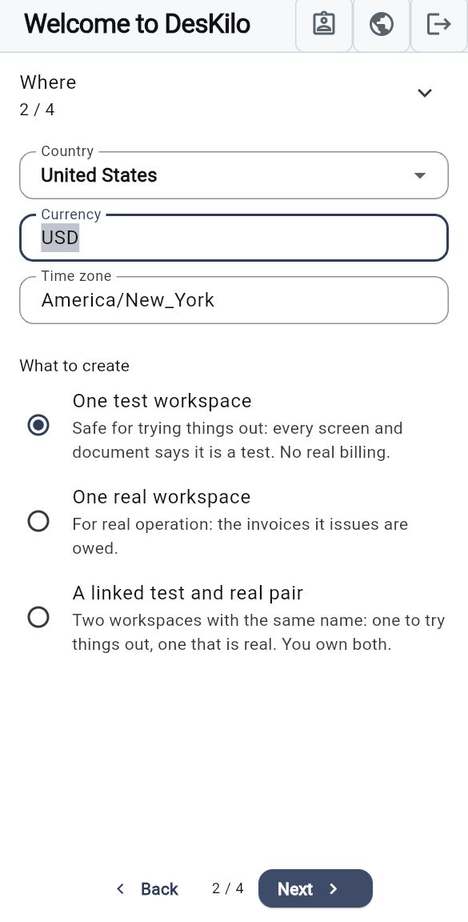
You want to try things without consequences, then run the real space. A space can be a test, a real one, or a linked pair with the same name.

Option Choose it when What happens
One test workspace You are learning. Every screen and document says it is a test: documents carry a watermark. No real billing.
One real workspace You know your settings. The invoices it issues are owed.
A linked test and real pair You want to rehearse changes before the real members see them. Two spaces, both yours. Only a deployment moves configuration from one to the other; members, bookings, invoices and payments never travel.

Good to know

  • The selector starts on the test option.
  • The environment is a statement by the owner; anyone with the configuration permission (the owner always) can change it later, and invoices already issued keep the watermark they carried, so start with a test space if you are unsure.
  • To practise with no space of your own, use the demo workspace.

See also: A space has two sides · Create a workspace · A test space

A test space or a real one

Start from a template or from nothing

Owner

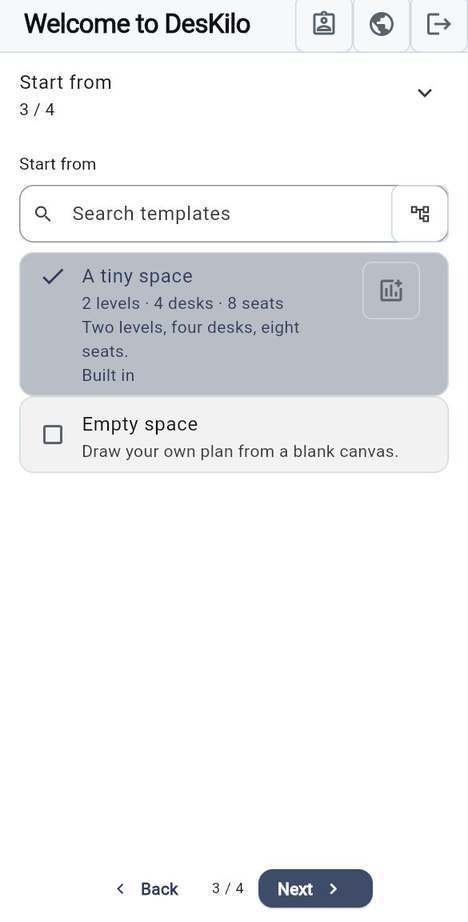
You want a head start without being locked into someone else's choices. When you create a space, Start from offers Empty space or a ready-made template, and is preselected on A tiny space; choose Empty space if you want a blank canvas.

The two built-in templates

Template What it sets up
A tiny space Two levels, four desks, eight seats, nothing else: enough to book, scan and browse from the first minute.
Association de coworking (France) Half days 7:00–13:00 and 13:00–19:00, Monday to Friday, public holidays, 50 % and 100 % memberships, two prepaid books of half-days (10 and 20), board roles (treasurer, secretary, room steward), a calendar for validations, and two floors ready to book. It also sets the workspace language to French and the VAT regime to not subject to VAT; only three words are renamed (Place, Étage, Réservations). The template's name is French in every app language.

Good to know

  • A template never carries your legal identity, bank details, sites, invitations or document links: those are yours, and the readiness list names them (the legal identity, with Invoices on, as an area of its own).
  • A template-created space can have invoicing on and nothing to issue with until you add the identity.
  • Applying a template to a space that already has tariffs replaces its fee bands: use it on a new space.

See also: Create a workspace

Start from a template or from nothing

What to prepare

Owner

You want the facts at hand so that setting up takes minutes, not days. Gather these first.

Before you start

  • The legal identity: association or company, registered name, address, registration and VAT numbers if you have them.
  • An accountant (or someone who will confirm tax choices): invoices and VAT are the part to check with a professional.
  • A tariff idea: free, a flat membership, or a percentage of days with a monthly fee.
  • Bank details members will pay to (IBAN and BIC, or the method used in your country).
  • A list of the first people: names and e-mail addresses, and who will approve requests.
  • A floor plan sketch: floors, rooms, how many desks and seats, and whether a whole room can be booked.
  • Your opening days and hours, and the days you close.

Good to know

  • You can open without the legal identity and the bank details; you need them before the first invoice.
  • Write the sketch on paper first. The app draws floors, rooms, desks and seats; it is faster to enter a plan you have already thought through.

See also: Prepare a space with the setup questionnaire

Decisions that are hard to undo

OwnerCo-owner

You want to know which choices to slow down for. Most settings can be changed any day. These cannot, or not cleanly.

Careful An issued invoice never changes, and its number is never reused. If you are wrong, you correct with a cancellation, a credit note or a refund request, not with an edit.

Decision When it becomes permanent What to do instead
Invoice number format and sequence The next number can be raised, never lowered. After the first invoice you can no longer print less of the date than the series shows. Preview the format, ask your accountant, then issue.
The month of an issued invoice Once a member's month is invoiced it is locked; closure days and public-holiday imports skip it. Set closure days before month-end.
VAT regime and rates Rates are versioned by date and never edited; a filed VAT return is never recomputed. Add a new rate from a date; decide the regime with your accountant.
Country, currency, time zone Amounts are stored as numbers with no conversion. Once the space has issued a document or recorded money, the server refuses any change of currency or country. The time zone is never locked, but every day is counted in it. Choose them right on day one; see Build the place.
Floor plan replacement Importing a plan is refused once reservations exist. Edit floors and rooms one by one in the editor.
Workspace ID It is what members type and what the printed QR codes point to. You can change it (4 to 20 letters or digits) with Change workspace ID, but the old ID stops working at once. Choose a short, memorable ID before you print anything; change it early if you must.
Test or real A real space issues invoices that are owed; dev documents are watermarked. Start in a test space, deploy when ready.
A rule that needs more validators than you have Requests wait for ever. Count your validators before you require two.

Good to know

  • Switching a feature off never erases data.
  • Deleting a floor removes every office, desk and seat on it.

See also: Money

Who does what

OwnerCo-ownerAdministratorOperator

You want to know whom to call for what. Three people can be involved, and the readiness list names them.

Who What they do
Owner (and Co-owner) Everything about the space: floors, hours, features, roles, tariffs, legal identity, invitations, deployments. Co-owners hold every permission by default; the owner decides what administrators may do.
Operator Runs the installation: the server and its secrets, and the database updates. Needed to make push notifications work, and for anything the readiness list calls Waiting for someone else.
Database administrator Approves a member's access for assistants.

Good to know

  • On a shared installation the operator is usually the platform's, not you.
  • Administrators act within the permissions the owner gave them in the role matrix.
  • If a section says The server operator, the app cannot do it from your screen.

See also: Decide who may do what · Deploy permissions

Chapter 02

Build the place

This chapter makes the first level, Open: where the space is, what it looks like, when it is open and what the rules of booking are. In about twenty minutes the space can be booked. The example is Atelier du Marché, an association in Pézenas with two floors and a room.

In this chapter:

Country, currency, time zone and language

OwnerAdministrator

You want the space to know where it lives. These four choices drive more than they seem to.

What each choice drives

Choice What it decides
Country The currency and time zone it proposes, and the public holidays offered as closure days (see below).
Currency How every amount is shown and counted.
Time zone What a working day, a half-day boundary and a closure day mean; a member abroad sees the space's day.
Workspace language The language invitations and shared message references are written in by default.

Steps

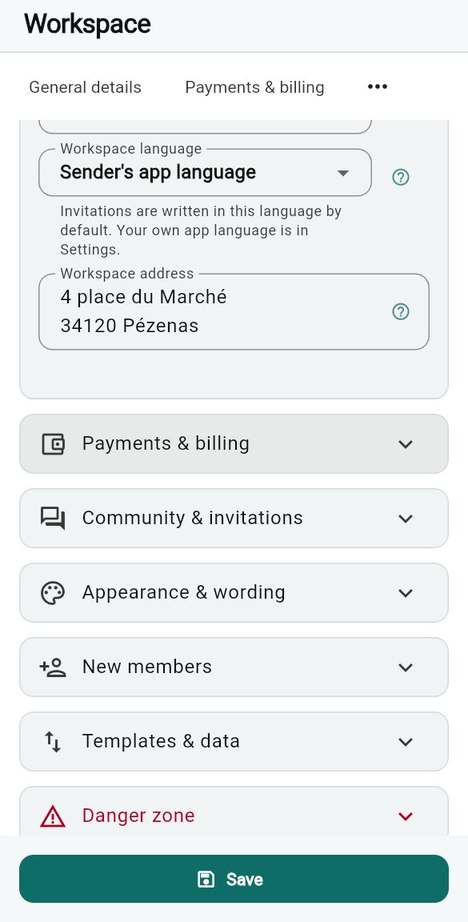
  1. Open Workspace and go to General details.
  2. Pick the Country; the Currency and Time zone follow, and you can correct them. For Atelier du Marché: France, EUR, Europe/Paris.
  3. Pick the Workspace language, then tap Save.

Careful Choose country and currency right on day one. Amounts are stored as plain numbers, so once the space has issued a document or recorded money, the server refuses to change either: "The currency and the country are fixed once this space has issued a document or recorded money. Nothing was saved."

Good to know

  • The app lists many countries, but issuing invoices inside DesKilo works for France and Germany only today. Elsewhere you keep statements and issue invoices outside the app.
  • The workspace language is not your own app language, which is in your personal settings.

See also: Country · Currency and time zone · Workspace language

Country, currency, time zone and language

The floor plan

OwnerAdministrator

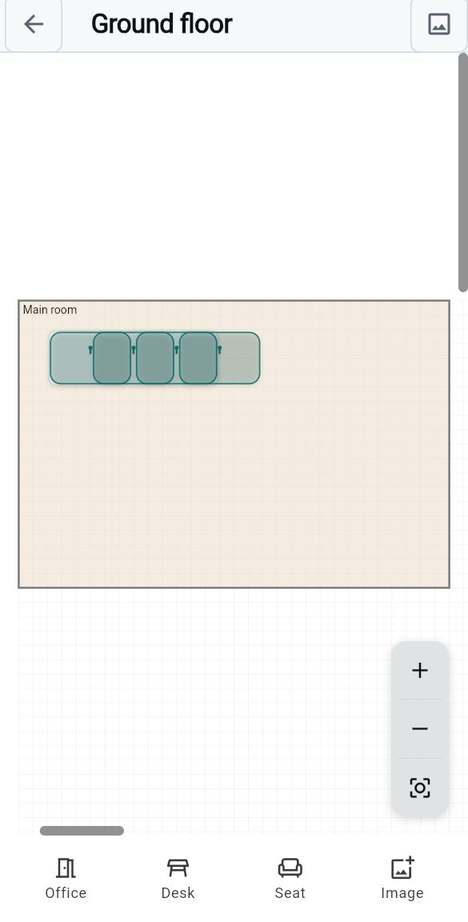
You want the plan on screen to look like the real place. It is built in four layers: levels, then offices (rooms), then desks, then seats. A member books a seat; a seat is what the readiness list counts.

Steps

  1. Sketch on paper: floors, rooms, desks, seats.
  2. Open Workspace editor and add the floors with Add level.
  3. Open a floor and draw each room with Office, then Desk and Seat inside it.
  4. If a team may take a room or a floor for a day, switch on whole-room booking in its properties.

Good to know

  • Start small: a first floor, one room, a few seats. Everything can be added afterwards.
  • A whole floor, office or desk can be booked only if Desk, office & level reservations is on and the member has the permission.
  • The built-in template A tiny space gives you two levels, four desks and eight seats to adjust.
  • Deleting a floor removes everything on it, and a plan import is refused once reservations exist.

See also: Add, rename and delete floors · Draw rooms, desks and seats · Let members book a whole floor

The floor plan

Opening times and booking rules

OwnerAdministrator

You want bookings to follow the rhythm of your place. One screen, Availability, holds the days, the shape of a booking, the working hours and the rules. The server applies them everywhere: plan, booking sheet, scanned codes and kiosk.

Steps

  1. Open Availability.
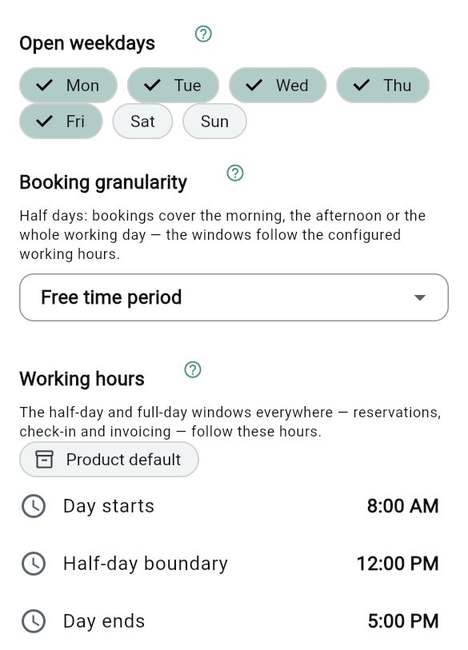
  2. Choose the Open weekdays (at least one) and the Booking granularity.
  3. Set the Working hours: Day starts, Half-day boundary, Day ends.
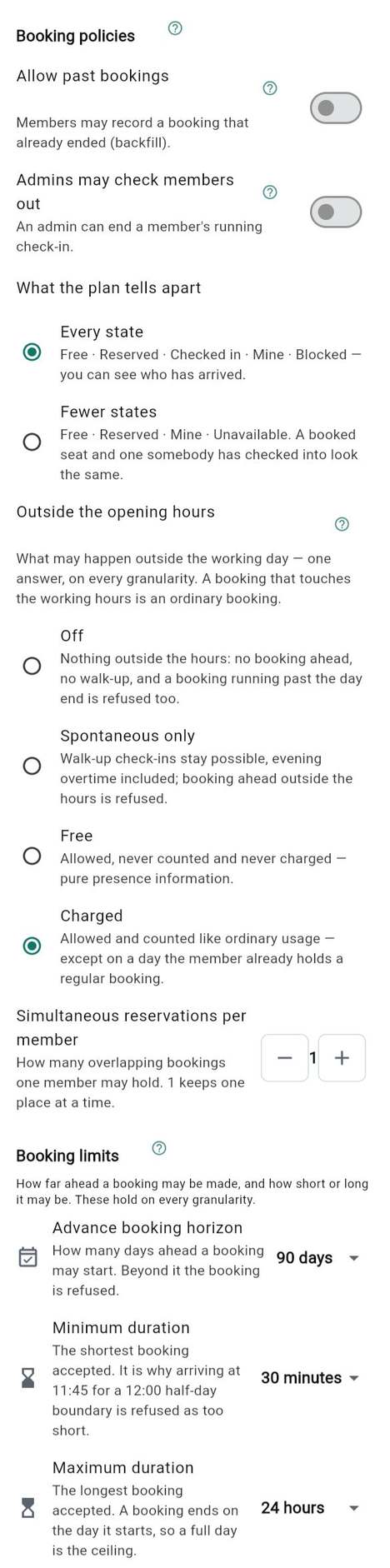
  4. Under Booking policies, decide on Allow past bookings, Outside the opening hours and the Booking limits.

Recommended starting points (suggestions, not rules; the default for Outside the opening hours is Charged, and the association template does not change it)

Scenario Granularity Hours Outside hours Past bookings Limits
A few shared desks Free time period or 1-hour slots Day 8:00–17:00 Free Off One booking at a time; horizon 30 days
An association room (Atelier du Marché) Half days (morning & afternoon) 7:00, boundary 13:00, end 19:00 Off Off One booking at a time; horizon 90 days
A coworking with half-days Half days (morning & afternoon) 8:00, boundary 12:00, end 18:00 Charged Off One or two at a time; horizon 90 days

Good to know

  • Outside the opening hours, Off refuses everything, Spontaneous only allows walk-ups, Free allows without counting, Charged counts like ordinary usage except on a day the member already holds a regular booking.
  • The day must run in order: start, then boundary, then end; the minimum duration cannot exceed the maximum.
  • A booking ends on the day it starts. Past bookings are off by default; booking an earlier window on the same day is always allowed.
  • Half-day and full-day windows also drive check-in and invoicing, so settle the hours before you set prices.

See also: Open weekdays · Granularity · Working hours · Outside the opening hours · Booking limits

Opening times and booking rules

Closing days and public holidays

OwnerAdministrator

You want the space to be shut on holidays without anyone booking them by mistake.

Steps

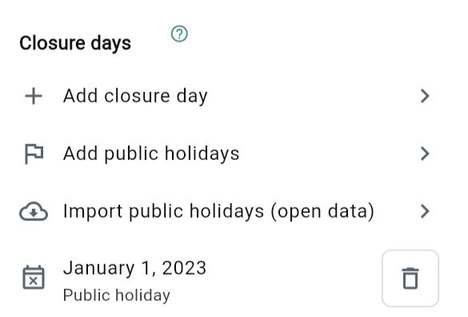
  1. In Availability, go to Closure days.
  2. Tap Add public holidays (if you do not see it, switch on the feature Public holidays first; it is off by default) to create a whole year in one go, or Add closure day for a single date such as an inventory day.
  3. Check the list and remove any day you actually work.

Good to know

  • Built-in holiday lists exist for France and Germany. For other countries switch on Public holidays and Import public holidays (open data, needs a connection). Nothing is created before you confirm.
  • A booking on a closure day is refused, and the plan shows the day as closed with its reason.
  • Months that are already invoiced are skipped, so add closure days before the month closes.

See also: Closure days · Public holidays

Closing days and public holidays

Check your space

OwnerAdministrator

You want proof that the space is ready, before you invite anyone. Two cards say so.

Steps

  1. Open Workspace: the card Setting up this space lists each area with its state, and the next step.
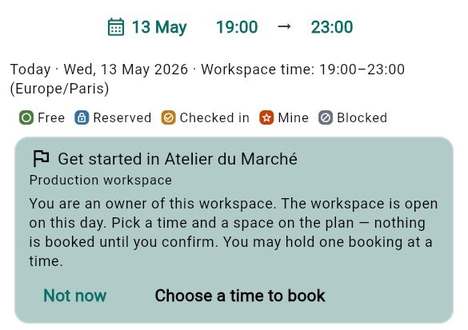
  2. Open Reserve. Owners and administrators with the configuration permission see the card Get started in your space. If something is missing it says Before anyone can book here, with Finish setting up.
  3. Book one seat yourself as a test, then cancel it.

Good to know

  • Ready means ready for a first booking: opening days, time zone, currency, at least one seat, members who may book, and enough validators.
  • Anything optional, such as tariffs or payments, can be set aside with Later and does not block opening.
  • Both cards depend on the feature Get started card.
  • Not now hides the card on this device; the view menu on the plan brings it back with Get started.

Result A space that members can book. Next: invite the first people, then the roles and tariffs of the second level.

See also: The Get started card and the tips · Invite people with the workspace ID · Roles

Check your space
Chapter 03

Choose what your space offers

A space is not one product with a hundred settings. It is a handful of things you decide to offer, one at a time. This chapter explains how DesKilo groups what it can do, what a new space already has, how the pieces depend on each other, and in which order to switch them on so that you never offer something you cannot yet run.

In this chapter:

Features and processes

OwnerCo-owner

You want to know what you are switching when you open Features. Everything DesKilo can do beyond the basics is a feature with its own switch. To keep a hundred switches readable, the screen groups them by what they are for.

How it is organised

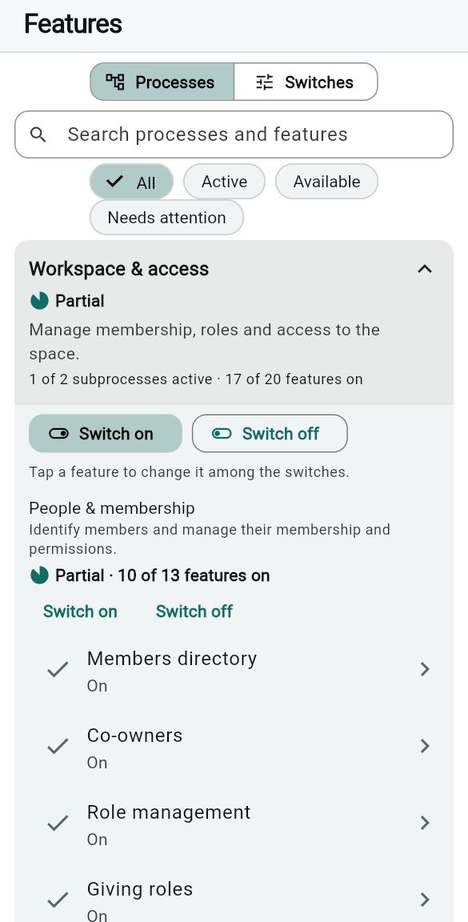
  • A process is a business job: for example Billing & payments or Calendar & coordination. There are nine.
  • A subprocess is a step of that job: Invoicing, Payment collection and VAT management are three of the five steps of Billing & payments.
  • A feature is one switch inside a subprocess: Invoices, Payment reminders, VAT declarations.

The nine processes and their subprocesses

Process Subprocesses
Workspace & access People & membership · Physical access
Space management Space structure · Opening days & hours · Space presentation
Reservations & usage Booking desks & spaces · Attendance & usage
Calendar & coordination Calendar views · Decisions & approvals · Member communication
Membership commerce Services & pricing
Billing & payments Financial records · Invoicing · Payment collection · Shared expenses · VAT management
Documents & information Document publication · Report design · Personal data access & exports
Operations & administration Configuration & deployment · Application experience
Integrations & automation External delivery

Good to know

  • A feature belongs to exactly one process, even when it needs a feature of another. The card says so: "Switching it all on also needs: Money tab (Billing & payments)".
  • Membership plans and the floor plan editor are not features: they are always there. Their settings sit in Workspace and Billing, not on this screen. Prepaid carnets are a feature: see Carnets.
  • Switching a feature off hides it from every screen where it appeared; it is not a permission. Who may do what is decided in Roles.

See also: What DesKilo can do · Switch whole processes on or off

Features and processes

Core and Platform: what a new space has

OwnerCo-owner

You want to know what members find on the first day, before you have switched anything.

Every feature belongs to one of two tiers, and a new space is created from them:

Tier In the app's words What a new space gets
Core What every space needs. On from the first day. On, when the feature is meant to be on at the start.
Platform Asked for, never assumed. Switch on what this space actually runs. Off. In Switches, they are listed under the Platform tier.

A new space starts with 45 features on, all of them Core (46 if you create the test twin at the same time: Environment pairs is then on as well). In plain words:

  • Booking: reserve a seat on the plan, repeat a booking (Series booking), book for someone else (Book for others), see a half-booked seat as part-filled (Seat day timeline), save a booking to a personal calendar (Calendar file of a booking), booking rules such as past bookings and outside hours (Booking policies, Booking gate), request the deletion of a past booking (Booking deletion requests), print QR cards for places (Space QR codes), configurable working hours (Working hours).
  • People: the community tab (Members directory), one page per member (Member page), the central role matrix (Role management and Giving roles), personal details for letters and invoices (Personal information), distinct initials on avatars (Distinct avatar initials).
  • Calendar and messages: the calendar in several views (Calendar tab, Calendar hub, Calendar views), the activity feed and confirmations (Events tab), private and group conversations (Member notifications, Messages, reworked) with references, forwarding, mentions, swipe gestures and screen-capture protection, the grouping of the notification feed (Notification feed grouping), and the button to write to the hosts of a published page (Write to the hosts).
  • Money: the Finances tab with its four faces (Money tab, Finances in four faces), invoices (Invoices), a service catalogue (Services), a PDF of the monthly bill (PDF export).
  • Documents and data: the document library (Document library), data export for the owner (Data export (Excel)), and each member's own export and erasure (Export & erasure).
  • Comfort: help hints, the Get started card, favourites and ratings for places, animations, regional formats and the choice of navigation style.
  • Delivery: Push notifications, which only reach phones once whoever runs the installation has set up the push service (see How members are told).
  • Plan tidying: Delete spaces with history and Name a single-room level by the level.

Everything else is Platform and off: kiosk and badges, several sites, accessory supplements, online payments, VAT management, the invoice journey, report design, deployments, WhatsApp, the assistant interface and the rest.

Good to know

  • The invoices feature is on from the start, but nothing can be issued until your legal identity is complete; Setting up this space marks it Needed before invoicing. See Avoid features that contradict each other.
  • A space that already exists never changes when DesKilo changes what a new space gets.
  • If you start from a template, the template can switch a few features on or off on top of this set. See Three starting points.

See also: A feature switch

Core and Platform: what a new space has

Features that need other features

OwnerCo-owner

You want to switch something on and be sure it works, or switch something off without breaking what hangs from it.

Many features sit under another one. Online payments needs Money tab; Payment reminders needs Invoices; Automatic payment reminders needs Payment reminders; VAT declarations needs VAT management, which needs Invoices. In the Switches list a feature that needs another one shows Requires followed by the name of its parent.

What the app does

You The app
Switch a feature on whose parent is off Switches the whole chain on, and names what came on with it: "Also switched on: …".
Switch a parent off Does not erase its children's choices. They are stored as you set them, but they do nothing; the row says "Waiting on the feature above — switch that on and this one works again".
Switch the parent on again The children that were on work again at once.
Switch a whole process or subprocess off while something still needs it Refuses and names who needs it ("… is still needed by: …"), unless you choose Switch off anyway, keep their settings or to switch the dependants off too.

Good to know

  • A child that is on but waits for its parent makes its process show Needs attention. That is the one state in which a switch and the app disagree, so it is worth a look. See Switch a feature on safely.
  • A parent can be in a different process from its child: Services (Membership commerce) needs Money tab (Billing & payments). The card then warns that switching it all on also needs the other.
  • The check is made on the feature, not on a permission: a role that may do something is never enough if the feature is off.

See also: A feature switch · Switch whole processes on or off

Switching off deletes nothing

OwnerCo-owner

You want to change your mind later, so you need to know what a switch does not touch.

Switching a feature off stops new business. It does not delete a single record: invoices, bookings, messages, roles and settings stay where they are, and switching the feature on again brings them back. Something already done stays done: an invoice issued while the feature was on keeps what it says.

Behind this, DesKilo sorts the actions of a switchable feature into three kinds:

Kind What the switch does to it Example
New work (acceptNew) Stops when the feature is off. Starting a new conversation with the hosts; giving a member a custom role; blocking a seat; starting a new online payment.
Work already open (serviceExisting) Carries on, so nothing is left hanging. Answering a conversation already started; taking a custom role back; lifting a seat block; settling a payment already open.
Unsafe paths (suspended) Stay shut whatever the switch says. Reserved for a path the server judges unsafe; no action is classed this way today.

Three features say it on their row, in these words: "Off: nothing new starts; what is already open can still be answered and closed." They are Write to the hosts, Roles this space defines and Admins can block seats. Auto check-in/out at day end also stops its end-of-day sweep when it is off, but its row does not say so. On a server that cannot confirm this, the row says "do not count on it".

Good to know

  • Money already committed is always settled: a payment return or a refund is never blocked by a switch.
  • With Online payments off, the server refuses a new online payment; one that is already open still settles. Its row carries no note about this.
  • A switch is not a way to hide something from one person. Use Roles for that.

See also: A feature switch

Beta, Unreviewed and the question before you switch on

OwnerCo-owner

You see a small word under a feature's name and you want to know what to do with it.

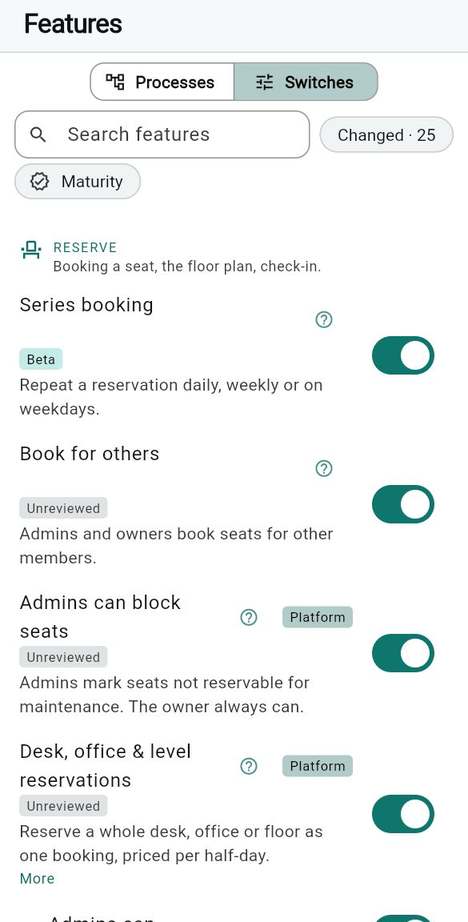
Each row of Switches carries a maturity badge, which says how far the feature has been reviewed against evidence:

Badge It means
Unreviewed Nobody has yet assessed it against evidence. It says nothing bad about it.
Alpha Assessed, at an early stage.
Beta Assessed, with known limits; its tests run on every change.
Stable Assessed, and also qualified with real providers, hardware or operators.

At the time of writing most features read Unreviewed, eighteen read Beta, and none has reached Stable yet.

What the app asks

  1. Flip the switch of an Alpha or Beta feature.
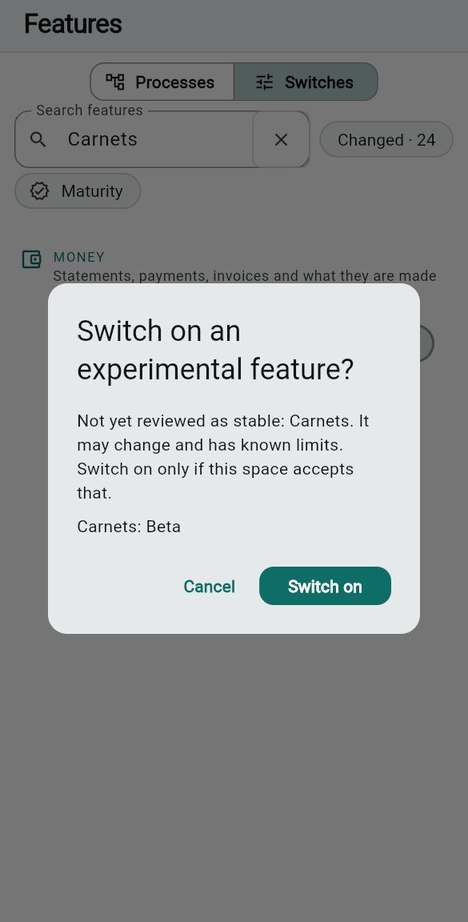
  2. The app asks Switch on an experimental feature? and says: "Not yet reviewed as stable: … It may change and has known limits. Switch on only if this space accepts that."
  3. It names the stage of each feature and the features that would come on with it because they are needed.
  4. Tap Switch on to accept, or Cancel: nothing is written.

Good to know

  • Unreviewed features do not ask. Only Alpha and Beta ask.
  • The question is asked on a single switch. A whole-process Switch on shows what it will switch on, but does not ask this question: switch Beta features one by one.
  • Beta features at the time of writing include Invoices, Online payments, VAT management, Carnets, Shared expenses, Usage records, Booking policies, Series booking, Booking gate, Booking deletion requests, Finances in four faces, Supplies from expenses, Validators by role or person, Chained validations, Auto check-in/out at day end, Data export (Excel), E-invoice delivery to customers and Demo workspace. Read each feature's limits with More before you rely on it for money.
  • Several of these are Core and already on in a new space. They start on without the question; it appears only when you switch one back on.
  • Maturity narrows the list to one stage, which is a quick way to see everything experimental that your space already uses.

See also: A feature switch

Beta, Unreviewed and the question before you switch on

Three starting points

OwnerCo-owner

You do not want to decide a hundred things. Here are three realistic starting points; each one lists exactly what is on. Pick the nearest, then adjust.

The first needs no template. The second is the ready-made template of the app. The third is built from the features themselves. They are named after what they offer, not after a size.

A few shared places

Owner

You run a handful of desks or rooms that people book, and nothing else yet. Create the space with Empty space or the template "A tiny space" under Start from: two levels, four desks and eight seats, enough to book, scan and browse.

The template sets no features, so the space has exactly the 45 Core features of Core and Platform. Nothing is switched on beyond that. For this profile, leave the rest alone:

  • Booking, calendar, messages, directory, QR cards for places, the document library and help hints are all there.
  • Money tab and Invoices are on, but until you enter your legal identity and tariffs they only show an empty statement.
  • Nothing needs configuring outside the plan and the opening hours. See Your place.

Tip If you never charge anything, you can leave the money features on without harm: members just see nothing to pay.

An association with a room

Owner

You are a French association that shares a room, with a bureau, members who pay a fee, and half-day bookings. Choose the template "Association de coworking (France)" under Start from. It sets up the opening rules, fee bands at 50 % and 100 %, two prepaid packs, the roles of the bureau, French wording and two floors, and it carries this feature profile:

  • The 45 Core features, except four it switches off: Events tab, Members directory, Member page and Notification feed grouping. A small association does not need a feed of events or a directory beside its conversations.
  • Four it switches on, because the bureau needs them: Validations on the calendar (decisions shown on the calendar), Carnets (prepaid half-days for people who do not subscribe, Beta), Roles this space defines (treasurer, secretary, room referent) and Workspace vocabulary (the association's own words).

That is 45 − 4 + 4 = 45 features on. The template carries no identity, so the address, the registration number and the bank details stay yours to enter, and the VAT regime starts as "not subject".

Good to know

  • Carnets is Beta and is switched on by the template without the question; that is the template's choice, and you can switch it off.
  • The template leaves Invoices on from the Core set. An association that does not invoice can leave it.

A coworking that invoices

Owner

You rent desks to members and send them invoices every month, in France or Germany. There is no ready-made template, so this profile is a list of what to add to the Core set, in this order. Everything in it chains from Money tab and Invoices, which are already on.

# Switch on Why Needs
1 Number sequences Decide how documents are numbered before the first one exists. Invoices
2 Subscription invoices The membership fee is invoiced before the month it pays for. Invoices
3 Usage records A record of the time really used (Beta). Invoices
4 End-of-month invoices What the month cost beyond the subscription is invoiced separately. Invoices
5 Invoicing wizard One guided month-close for whoever does the billing. Invoices
6 The journey of an invoice Every invoice shows where it stands and whose move it is. Invoices
7 Invoice PDF template Your own introduction and footer text on the PDF. Invoices
8 Member reports The financial agreement and the monthly payments report for members. Money tab
9 Payment reminders Reminder levels, a letter per level, "Reminder due" on late invoices. Invoices
10 Consumption report A letter at month end with what was used. Usage records

Then add only what applies to you:

  • VAT management (Beta) if your space is registered for VAT. Then VAT declarations, and VAT rate versions and VAT groups if your accountant asks for them.
  • Admins issue invoices if you want a billing administrator to issue them. The owner always can.
  • Online payments (Beta) only when you have a payment provider to connect.
  • Automatic payment reminders only after you read what it does.
  • Accessory supplements, Carnets and Shared expenses when you bill those things.

Good to know

See also: Money and invoicing · Start from a template or from nothing

The order to switch things on

OwnerCo-owner

You want to avoid the day on which everything is on and nothing works. Go one process at a time, and look at each from a member's side before you move on.

Steps

  1. Keep the Core set and make the basics work: the places, the opening hours, one tariff. See Your place.
  2. Open Features and open one process card. Choose the process that matches your next need, not the one that looks most complete.
  3. Tap Switch on for a subprocess, or open a single feature among Switches.
  4. Read the preview: what is Also needed, what is already on.
  5. Look at it as a member: sign in as one (a second account, or the test side of your space) and do what a member would do.
  6. Only then move on to the next process.

A sensible order

Step Process Why this place in the order
1 Space management Nothing can be booked without a place and opening hours.
2 Reservations & usage Booking rules shape everything after them.
3 Workspace & access Roles and who validates, before the first invitation.
4 Calendar & coordination Messages and validations need people to exist.
5 Membership commerce, then Billing & payments Prices before invoices; legal identity before the first invoice.
6 Documents & information, Integrations & automation They dress and deliver what the others produce.
7 Operations & administration Pairs, deployments and transfers once the space is worth copying.

Good to know

  • Switching on is cheap and switching off deletes nothing, so a wrong step costs time, not data. The exception is anything that issues an invoice: see Decisions that are hard to undo.
  • A test space is the right place to try a process. See A test space or a real one and A test space.
  • Invite members last, after the roles, the validation rules and the tariffs they will meet.

See also: Switch whole processes on or off

The order to switch things on

Switch a feature on safely

OwnerCo-owner

You are about to change a feature and you want to see the effect before it exists.

Steps

  1. Open Features. The Processes view is shown.
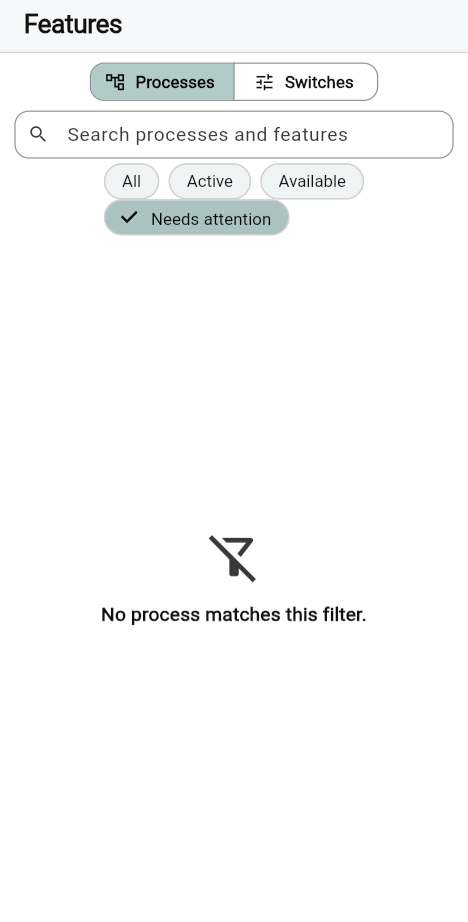
  2. Tap Needs attention. Only the processes holding something that is on but waiting remain.
  3. Open a card. A feature On, waiting for a named parent is the thing to fix.
  4. Fix it by switching the parent on, or by switching the feature off.
  5. To change one feature, tap Switches, find it with Search features and flip its switch.
  6. Read the question or the "Also switched on" line, and confirm.

What "held back" means

A feature is held back when you chose it but something it needs is off. Its own switch stays on, which is why it is easy to miss: the screen says the feature is on, and the app does not offer it. The card says how many features are held back ("… on but wait for a switched-off prerequisite") and which prerequisite they wait for, and you fix it in Features itself. What needs you shows the same thing as one line per switched-off prerequisite.

Other things a feature can wait for are not on this screen. A feature can be on and fully allowed while its details are missing: your legal identity, a site, a payment provider. Those appear in Setting up this space, at the top of the workspace settings: the legal identity, with Invoices on, as The space's legal identity and address, the rest under Details your features need (identity, bank, platforms).

Good to know

  • If somebody else changed the features while you were looking, the app writes nothing and says so: "The features changed meanwhile, so nothing was written." Look at the list again and switch again.
  • Changed counts the switches that differ from the registry default. On a new space it already shows a number (the Platform features that start off), so it is not a count of your own changes.
  • Nobody but an owner or co-owner can write features. The server checks again at the moment of writing.

See also: Switch whole processes on or off · A feature switch

Switch a feature on safely

Avoid features that contradict each other

OwnerCo-ownerBilling administrator

You want to know which combinations leave a space half-working, and which of them the app catches for you.

The app has guards for some contradictions and none for others. In the table, a guard is what the app does; a gap is what stays your responsibility.

If you have… Guard in the app Gap that remains
Invoices on, no legal identity Issuing is refused, with Complete these details before issuing listing the missing address, VAT number and so on. The need also shows in Setting up this space, as The space's legal identity and address, Needed before invoicing, and in What needs you. The feature is on from the first day, so nothing prevents inviting members and running a month before the identity exists.
A country other than France or Germany Issuing says the country "must be France or Germany for issuing here". Nothing warns you when you choose the country or switch invoicing on.
Registered for VAT, no rate in force Issuing is refused until a default rate is in force. The description of VAT management and the warning on the legal identity screen say so. With VAT management off, the configuration is hidden while the stored rates keep applying. Check the rates after switching it off.
Online payments on, no provider A new online payment is refused when the feature is off; the missing provider shows in Setting up this space. You can switch it on without a provider. Connect it first: Payment provider.
Kiosk mode on, no badges and no kiosk member RFID / NFC badges, QR badges, Member photos at the kiosk and Sign in with a badge cannot be on without it. Nothing checks that a kiosk member exists or that a badge has been issued. See Run a wall tablet.
Sites on, no site At least one site appears among the details your features need. The switch can be on with no site.
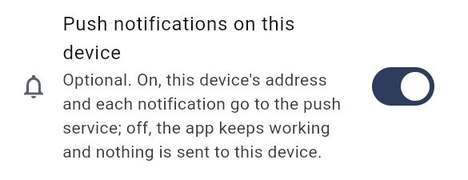
Push notifications on, no push service Members still get everything in the app. Phones receive nothing until whoever runs the installation has set up the push service. See How members are told.
Payment reminders on, Automatic payment reminders on The second cannot be on without the first. The server sends them each morning where the installation schedules jobs; otherwise they are sent when an administrator opens Finances. The switch and the feature description say so; your server operator knows which applies.
A validation rule asking more validators than exist Setting up this space says "A policy asks for more validators than this space has", and Roles and who validates requests becomes required, whatever the kind of request. Requests created before you fix it cannot be completed and expire after seven days. See Who validates.
Booking deletion requests on, nobody to validate Same readiness line. Same gap.
Desk, office & level reservations on Admins can assign levels needs it. Each member also needs the right; nothing checks that anybody has it.
A child feature on, its parent off Needs attention, and "Waiting on the feature above". None: this one is fully covered.
A space made from a template The template names what is yours to enter (identity, bank, site). It carries none of them, so a space can start with Invoices on and nothing to issue with.

Good to know

  • The rule of thumb: if a feature brings your name, your money or your legal duties onto a document, finish its details before you tell members.
  • Setting up this space is a list, not a lock. It never stops you from switching something on.
  • The check "Before anyone can book here" speaks only about the required areas: the time zone, the currency, an open weekday, at least one seat, members who hold Book and use reservations and enough validators. With Invoices on, the legal identity is required too, but before invoicing: the Workspace card says “Before invoicing”, and the Reserve card never names it.

See also: Legal identity and invoicing · Dry run

The feature map

OwnerCo-owner

You want one place that says, for the main features, what members get, what it needs and who has to set it up. "Needs" lists the feature above it first, then the details outside the Features screen. "Who" is the person who must do something before it is useful; "Nobody" means it works the moment it is on.

Workspace & access

Feature What it adds for members What it needs Who configures
Members directory The community tab: who is here, statuses, presence. Nobody
Co-owners Owner permissions for appointed people, now or on succession. Owner
Role management The matrix of which role holds which permission. Owner
Giving roles A Roles section on each member page. Role management Owner
Roles this space defines Roles of your own, such as treasurer or secretary. Owner
Questions this space asks Your own questions in the identity form. Owner
Personal information Name, address, phone and ids that letters print. Members
Managed profiles Members without an account, booked and invoiced for. Members directory Administrator
Member page One page per member. Members directory Nobody
Guest visits A person who is not a member can ask to visit. Whoever admits visits
Kiosk mode A wall tablet locked to the live plan. A tablet and a kiosk member Owner
RFID / NFC badges Check in by tapping a card. Kiosk mode, Android with NFC, issued badges Owner
QR badges Printable QR badge cards. Kiosk mode Owner
Sign in with a badge Badge and PIN instead of typing an e-mail. RFID / NFC badges Owner, then each member
NFC/RFID chair tags A chip on a chair opens its seat. Tags Owner
Space QR codes Printable QR cards per place. Nobody

Space management

Feature What it adds for members What it needs Who configures
Sites Several addresses, each with its own registration. At least one site Owner
Delete spaces with history Owners can delete a place that has past bookings. Nobody
Admins can block seats Seats marked not reservable for maintenance. Owner
Working hours The working day and exact-hours booking. Owner
Public holidays Closure days from the holidays of a year. Owner
Import public holidays Holidays of a country or region imported. Public holidays Owner
Seat utilisation A monthly figure for how much was booked. Owner
Member photos on the plan Occupants' photos on seats. Nobody
Workspace vocabulary The space's own words for a few labels. Owner
Workspace colours The brand colour and room colours. Owner
Public workspace listing A public page with what you choose to show. Owner

Reservations & usage

Feature What it adds for members What it needs Who configures
Series booking Repeat a booking. Nobody
Book for others Admins book for members. Nobody
Desk, office & level reservations Book a whole desk, office or floor. A right granted per member Owner
Admins can assign levels Admins assign those reservations. Desk, office & level reservations Owner
Booking policies Past bookings, bookings outside hours, admin check-out. Owner
Booking gate Every surface checks the rules and names the reason. Booking policies Nobody
Auto check-in/out at day end Unchecked bookings complete themselves. Owner
Usage records The time really used, and a request to stop billing unused time. Invoices Billing administrator

Calendar & coordination

Feature What it adds for members What it needs Who configures
Calendar tab, Calendar hub, Calendar views Month, week and agenda, with everything dated. Nobody
Validations on the calendar Decisions shown when they were taken. Calendar hub Nobody
Events tab The activity feed and confirmations. Nobody
Notification feed grouping Notifications grouped in the feed. Nobody
Validators by role or person A rule can name who validates and how many. Owner
Chained validations Validations asked one after another. Owner
Booking deletion requests A member asks to delete a past booking. A validator Owner
Member notifications Private and group conversations. Nobody
Messages, reworked Inbox bar, pin, mute, archive, drafts. Nobody
Write to the hosts A person who finds your page can write to you. A published page Owner
Mentions in groups, Message forwarding, Screen capture protection Messaging extras. Member notifications Nobody

Membership commerce

Feature What it adds for members What it needs Who configures
Services A catalogue of things to consume and pay for. Money tab Billing administrator
Accessory supplements Priced seat accessories per half-day. Money tab Billing administrator
Price negotiations Conditions of their own for one member. Money tab Billing administrator
Payment conditions per member Payment terms of their own. Invoices Billing administrator
Carnets Prepaid half-days (Beta). Invoices, a pack defined Billing administrator

Billing & payments

Feature What it adds for members What it needs Who configures
Money tab The Finances tab: statement, payments, expenses. Nobody
Finances in four faces Statement, Payments, Invoices, Documents. Money tab Nobody
Member reports The agreement and the monthly payments report. Money tab Billing administrator
Invoices Immutable signed invoices (Beta). Money tab, legal identity, VAT, FR or DE Billing administrator
Admins issue invoices Administrators issue them too. Invoices Owner
Subscription invoices The fee invoiced before its month. Invoices, a date Billing administrator
End-of-month invoices Usage invoiced after the month. Invoices Billing administrator
Regroup invoices Several open invoices as one. Invoices Billing administrator
The journey of an invoice Where each invoice stands. Invoices Nobody
Invoicing wizard A guided month-close. Invoices Billing administrator
Number sequences Numbering per journal. Invoices Billing administrator
Online payments Pay online (Beta). Money tab, a payment provider Owner
Payment reminders Reminder levels and letters. Invoices, rules Billing administrator
Automatic payment reminders Reminders sent by themselves. Payment reminders Billing administrator
Supplies from expenses Supplies bought become services. Services Billing administrator
Scheduled expenses Recurring costs scheduled. Money tab Billing administrator
Shared expenses Costs shared between members. Invoices Billing administrator
Repartition wizard A guided split of a shared cost. Shared expenses Billing administrator
Accounting book Who keeps the official books. Invoices Billing administrator
VAT management VAT rates and pickers (Beta). Invoices, VAT regime Billing administrator
VAT declarations The periodic return. VAT management Billing administrator
VAT groups, VAT rate versions, VAT by counterparty Finer VAT handling. VAT management Billing administrator

Documents & information, Operations, Integrations

Feature What it adds for members What it needs Who configures
Document library Statutes, minutes, guides, per role. Owner
PDF export The monthly bill as a PDF. Nobody
Invoice PDF template Your texts on the invoice. Invoices Owner
Report designer, Positioned report layouts, Report texts Designed reports. Invoice PDF template Owner
Consumption report A monthly letter on what was used. Usage records Billing administrator
VAT report Every taxable line, with a CSV. VAT declarations Billing administrator
Data access log Members see who looked at their finances. Money tab Nobody
Data export (Excel) The owner exports the data as a workbook (Beta). The permission Export accounting and data Owner
Export & erasure A member exports and erases their own data. Nobody
Filming mode Replaces real people with invented ones on screen. Owner
Environment pairs, Deployments A test side and a real side, with deployment. Owner
Configuration in the space file The whole configuration travels in the space file. Data export (Excel) Owner
Instance wizard Create a new server from the app. Operator
What needs you One ranked list of what waits for you. Nobody
Task recorder Record and replay the steps of a task. Nobody
Push notifications Pending confirmations on the phone. The push service of the installation Operator
WhatsApp integration A chat with a member in one tap, the group link. Members directory Owner
E-invoice delivery to customers Sending to the customer's own platform (Beta). Invoices, an account Billing administrator
MCP interface An assistant can be connected. A grant per person, approved by the installation Owner, then Operator

Good to know

  • Names are the ones of the Switches list. The Core and Platform tier of each is shown there.
  • A few features are not listed here. Features of comfort (help hints, animations, navigation style, regional formats) have no table row: they work the moment they are on.

See also: Who does what · Switch features on and off

Chapter 04

People, roles and decisions

A space is its people. Before you invite the first of them, decide three things: who may do what, how someone gets in, and which acts need a second person to say yes. They are quick to set and awkward to repair once forty people rely on them.

In this chapter:

The running example is Atelier du Marché. Imagine it is run by an association: Ada is the president, Chiara the secretary, Bruno the treasurer. Every step below is shown on that space.

Who does what in a real organisation

OwnerCo-owner

You want to map the people of your organisation onto the roles DesKilo has, so that nobody holds more than their job needs.

The four base roles

Role What it is for In the association
Owner The person who answers for the space and holds every permission. Only an owner can grant ownership. Ada, the president.
Co-owner A second key. Holds every permission by default, and can take over when the owner leaves. The vice-president, if the board has one.
Administrator Runs the day: members, bookings of others, the kiosk, documents, services. Holds what the matrix gives and no more. Chiara, the secretary.
User The person who uses the space. Holds only the everyday permissions you give. Bruno, a member like the others.

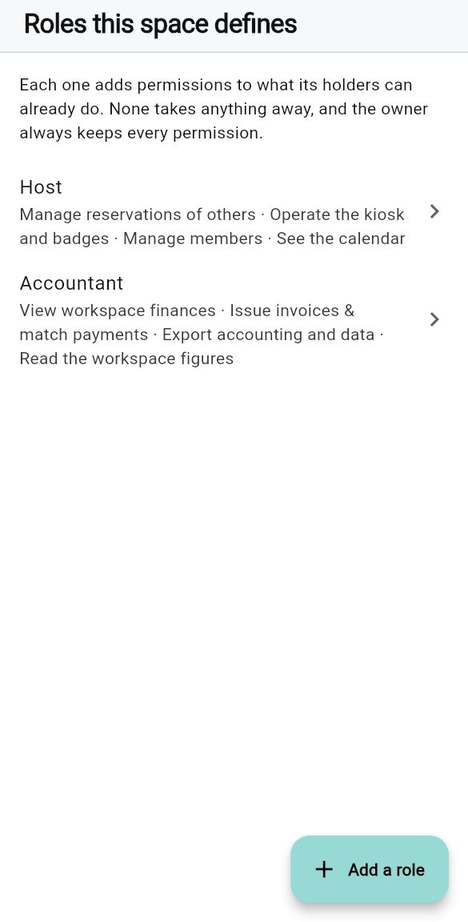
Everyone has exactly one base role. A role the space defines, such as Host or Accountant, is added on top of it and never takes anything away.

A treasurer without being an administrator

Bruno keeps the books but should not edit the floor plan or approve new members. Give him the base role User and add a role of your own, for instance Accountant, with four permissions: View workspace finances, Issue invoices & match payments, Export accounting and data and Read the workspace figures. Nothing more. No such role is built in; you create it with the steps below.

Steps

  1. Open Roles this space defines and tap Add a role. See Roles this space defines.
  2. Name the role, choose What it adds, tap Save the role.
  3. Open the person in Members & plans, find Roles and tap Add a role.

Good to know

  • Roles this space defines is a feature of its own and is off in a new space. Switch it on in Features.
  • Nobody can give a role to themselves. Giving a role needs Manage roles & permissions, and only an owner can give a role that carries it.
  • A role the space defines takes effect at once and is recorded. Only making someone an administrator, or taking it away, follows the Role change validation rule.

Result Each person of the board holds the permissions of their job, and the owner remains the only one who can change that.

See also: The role matrix

Who does what in a real organisation

The role matrix: least privilege

OwnerCo-owner

You want each role to hold what it needs and nothing else. That is the principle of least privilege: start small, add when someone asks, because a permission given is rarely taken back with grace.

Steps

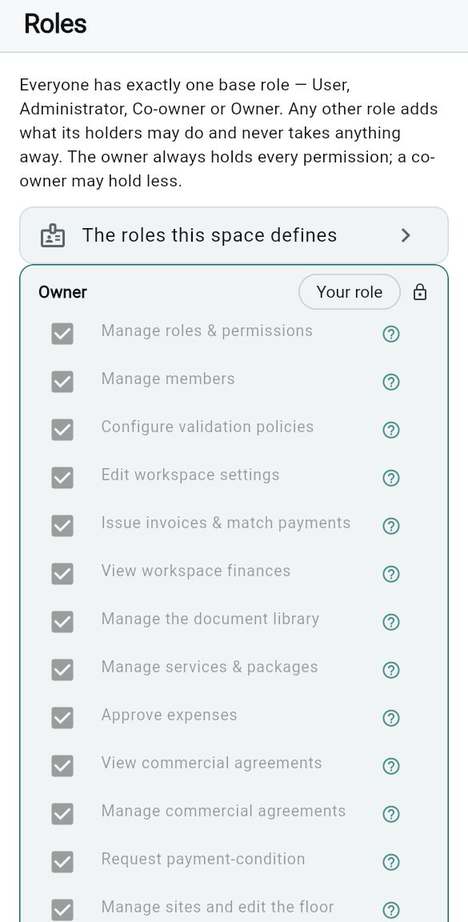
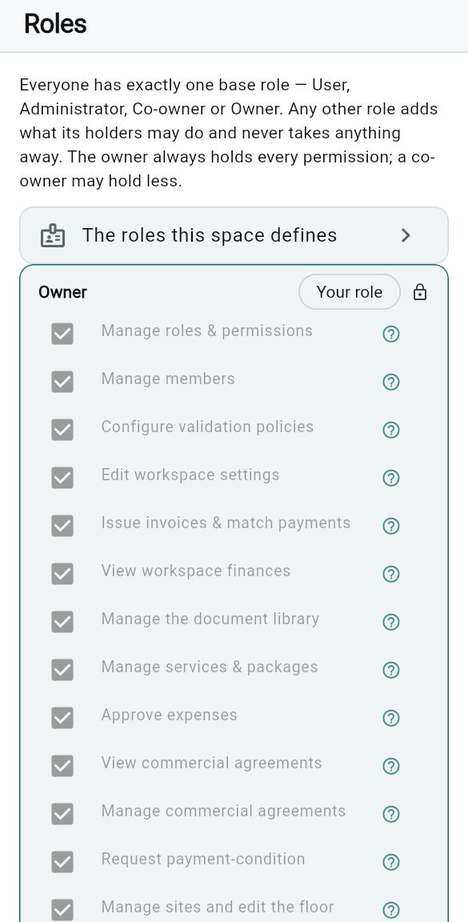
  1. Open Roles. There is one card per role: Owner, Co-owner, Administrator (the owner can rename it) and User.
  2. Read the card of the Administrator first. It shows what an administrator holds in your space today.
  3. Untick what you do not want to delegate. Tick the everyday permissions the User card needs (see below).

What an administrator holds by default

Group Permissions
People Manage members, Read members' personal data
Bookings and the place Manage reservations of others, Operate the kiosk and badges, Manage sites and edit the floor plan
Money, read and approve View workspace finances, Approve expenses, Manage services & packages, View commercial agreements, Manage commercial agreements, Request payment-condition changes, Export accounting and data
Documents and figures Manage the document library, Read the workspace figures
Two sides of a space Deploy to development, Enter the production workspace

An administrator does not hold Manage roles & permissions, Configure validation policies, Edit workspace settings, Manage tariffs and billing rules, Design the documents, Manage integrations, Manage the configuration or Deploy to production. A co-owner holds all of them until you untick some. The owner always holds all of them.

Careful In a new space the User card is empty. The six everyday permissions (Use the messenger, Book and use reservations, See the calendar, See the member directory, See their own account and invoices, See the shared documents) are held only through the matrix or a role. Until you tick them, a member who joins cannot open the plan. The demo shows them already ticked, which hides this. Setting up this space shows What members may do as Needed for a first booking until the User card holds Book and use reservations; it does not check the five others. Tick them for the User card, and for the Administrator card if administrators also book, then test with a second account.

Good to know

  • By default an administrator can read all finances and the personal data of every member. If your administrators are volunteers, think about whether they should.
  • Admins issue invoices (a feature, off by default, under Invoices) gives administrators Issue invoices & match payments whatever the matrix says. Prefer the tick in the matrix, or a role of your own, which is more precise.
  • Unticking a permission removes it everywhere at once; the server checks it, not only the menu.
  • Every change of the matrix is recorded as an event. The Role management feature only shows the screen; switched off, the matrix you saved still applies, you just cannot edit it.

Result A matrix you can explain in one sentence per role.

See also: The role matrix · Who does what

The role matrix: least privilege

Co-owners: more than one person who can act

OwnerCo-owner

You want the space to keep working when you are ill, away or gone. Every space needs more than one person who can act. By default only owners and co-owners hold the permissions that change features, roles, validation rules and the workspace ID, and only an owner can make another owner.

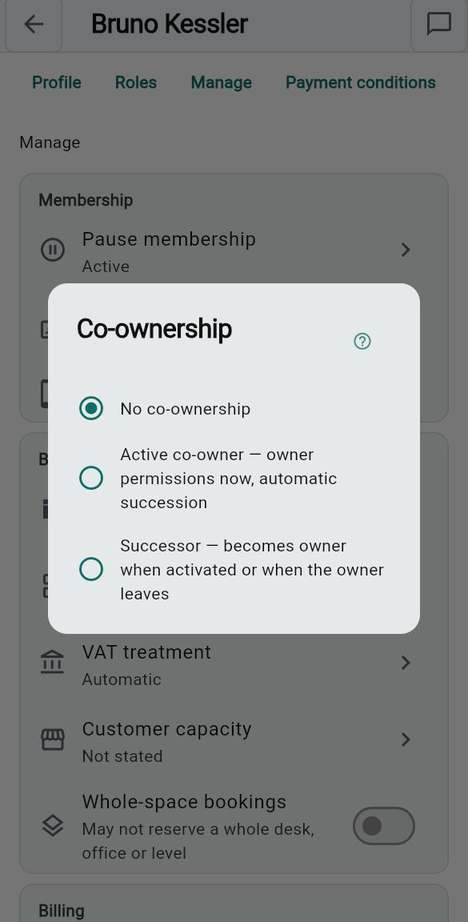
The two kinds

Kind What it does Choose it when
Active co-owner Holds the owner's permissions now, and takes over if the owner leaves. You share the work: the vice-president, a partner.
Successor Waits. Becomes owner when you promote them or when you leave. You only want an heir.

Steps

  1. Switch on the Co-owners feature in Features. It is off in a new space.
  2. Open the person in Members & plans, go to Manage and tap Co-ownership.
  3. Choose Active co-owner or Successor. To hand over now, choose Promote to owner now.

Good to know

  • If the last owner leaves, the best co-owner becomes owner on their own, an active one before a successor.
  • Two administrators are not the same thing: an administrator holds only what the matrix gives and can never hand ownership on.
  • A rule that says Owner must always validate asks for an owner. Check on your test side that your co-owner can still decide what you expect.

Result The space has a second person who can act.

See also: Co-owners · Co-ownership

Co-owners: more than one person who can act

How people join

OwnerAdministrator

You want to choose how people reach your space and who lets them in. Four ways exist, and every one of them ends in the same place: a person asking to join, and someone deciding.

Way What the person receives What they become
The workspace ID A short word, typed in the app. A member, after approval.
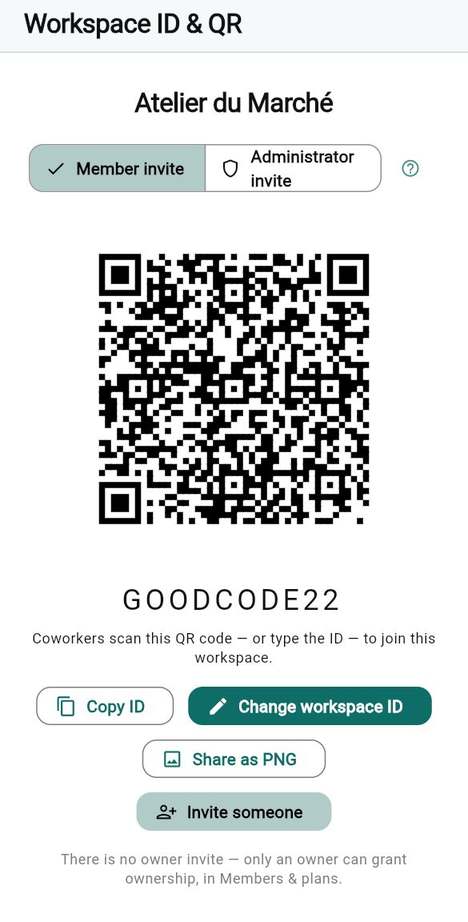
The QR code The same ID as a picture to print or post (Share as PNG). A member, after approval.
An invitation message A text with a personal code, valid for one person, in the language you pick. The role you offer, after approval.
An administrator code A one-person code from the Administrator invite tab. An administrator, once.

Steps

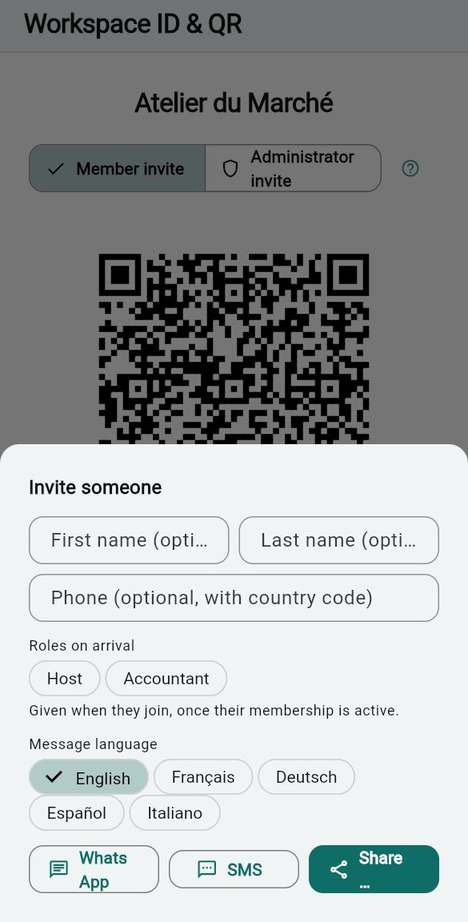
  1. Open Workspace ID & QR. Choose an ID people can remember with Change workspace ID: 4 to 20 letters or digits, unique across DesKilo.
  2. For a named person, tap Invite someone. Fill in the name, tick Roles on arrival if they should receive a role, pick the Message language and send.
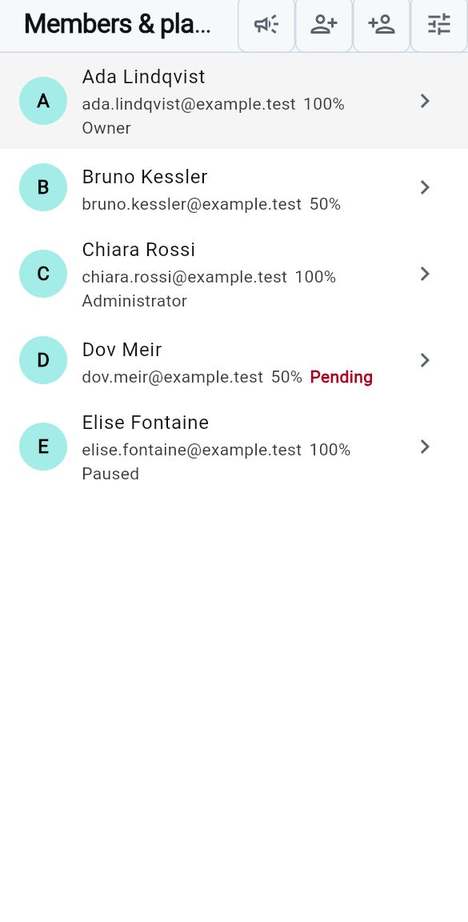
  3. When someone asks to join, their row in Members & plans says Pending. Open it and choose Approve membership or Reject membership.

Good to know

  • Nobody gets in without a decision. Until it is taken, the newcomer sees a waiting screen and nothing else.
  • The decision follows the rule of New member in Validation rules: by default one owner or administrator suffices; if you require two, the first approval leaves the person pending.
  • If you change the workspace ID, the old one stops working. Print the QR code again.
  • There is no owner invite. Ownership is given in Members & plans.

Result People can find you, and you decide who stays.

See also: The workspace ID · Join a workspace · Pending and paused members

How people join

The invitation message, language by language

OwnerAdministrator

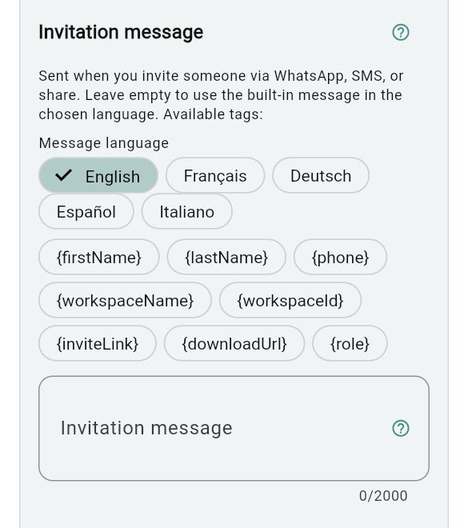
You want an invitation that sounds like your space, in the language of the person who gets it. Each language has its own text; the one you do not write falls back to the built-in message.

Steps

  1. Open Workspace and go to Community & invitations.
  2. Under Message language choose the language you write for. The row opens on your workspace language.
  3. Write the text. Tap a tag to insert it where the cursor is. The limit is 2000 characters.
  4. Repeat for each language your members use, then tap Save.

The tags

Tag Filled in with
{firstName} {lastName} {phone} What you typed in Invite someone. Empty if you typed nothing.
{workspaceName} The name of your space.
{workspaceId} The personal invitation code of this message (not the public workspace ID).
{inviteLink} A link that opens the app on the right server with the code filled in.
{downloadUrl} The store page of the app.
{role} The role the invitation offers, in the language of the message.

Good to know

  • Leave the box empty and the app writes its own message in that language. It explains the steps: download, create an account, join with the code.
  • Do not paste a code or a link yourself. Each send creates its own code, valid for one person.
  • A tag you misspell stays visible in the sent text: read the preview before you send.
  • The built-in message tells the person the code is single-use and valid for 14 days.

Result An invitation your members can follow without asking you.

See also: Invitation message · Invite someone by message

The invitation message, language by language

Managed profiles

OwnerAdministrator

You want to book, invoice and manage for someone who has no account yet: a visitor, an elderly member, a person who prefers paper.

Steps

  1. Switch on Managed profiles in Features.
  2. In Members & plans, tap Add a managed profile and fill in the identity.
  3. When the person is ready, open their page and choose Hand over to the person. It creates a personal code bound to the profile.

Good to know

  • Whoever redeems the code takes over the profile with its bookings, invoices and subscription, once you approve the membership.
  • Take the handover back with Revoke handover if the code was not used yet.

See also: Add a managed profile

Validation: what a rule is made of

Owner

You want to choose, act by act, whether a second person must agree. A validation domain is one kind of act with its own rule: a payment, an expense, a new member, a booking deletion. In Validation rules the domains sit in three groups.

Group Domains, in plain words While it waits
Money A payment, an expense, a service, an invoice matched to its payment, an invoice issued or cancelled, a refund, a write-off, a price agreement, a shared expense, a scheduled expense, a payment-condition change, an early departure, a usage record removed The amount does not count on anybody's statement.
Bookings Extra half-days a member asks for, Whole-space reservations, a booking made for a member by an administrator, a Booking deletion The seat stays as it was.
People and roles New member, a role change, a change of status, a subscription change, a change of the permission matrix The person keeps the access they have now.

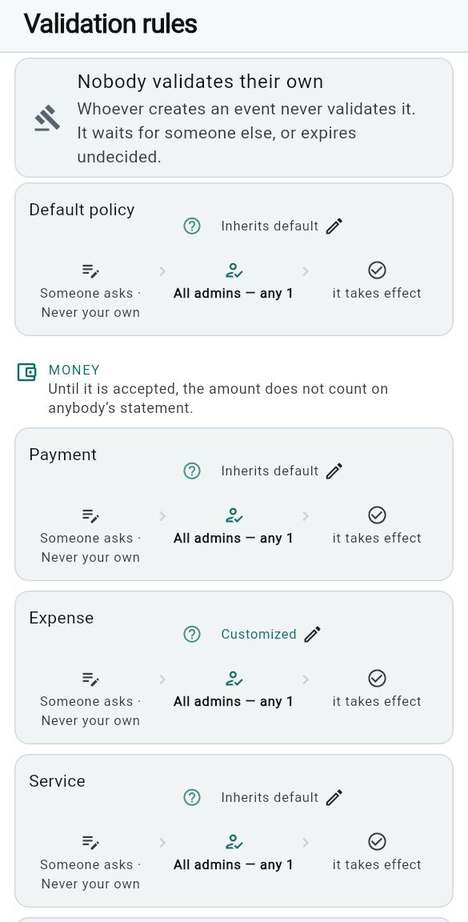
Every domain starts with Inherits default: one validation by any administrator or owner. Default policy is the rule all the others inherit. A domain you open and save becomes Customized.

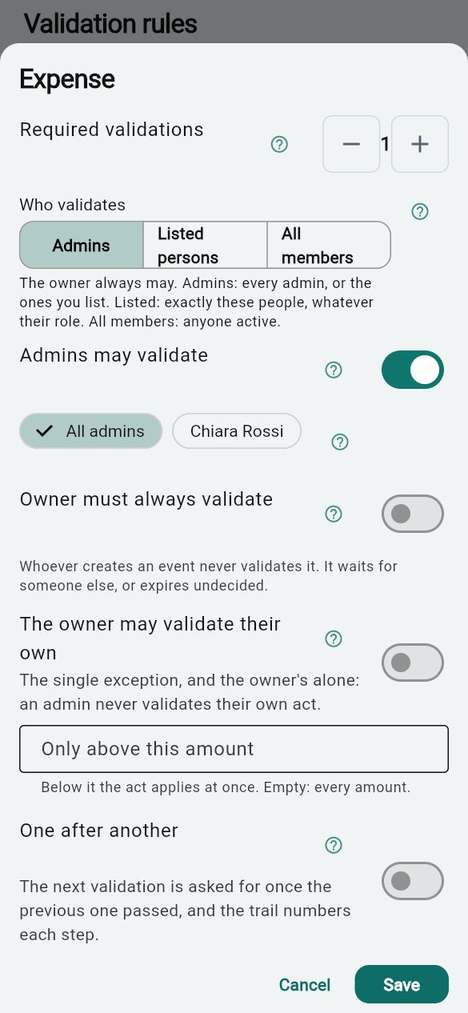
The knobs of a rule

Setting What it means Needs
Required validations How many people must say yes.
Who validates Admins, Listed persons or All members. The owner always may. Validators by role or person: without it the choice is not shown and administrators validate. After switching it off, check again the rules that named Listed persons
Admins may validate Off, only owners validate.
Owner must always validate One of the yes answers must come from an owner.
The owner may validate their own The owner's own request is not left waiting for someone else. An administrator never gets this. Chained validations
One after another The second is asked once the first has said yes. Chained validations
Only above this amount Below it, the act applies at once. Money domains only. Chained validations
Admins delete without validation / Owners delete without validation Their own Booking deletion settles itself and stays marked as auto-validated. Off by default.

Steps

  1. Open Validation rules. Tap Default policy and decide what everything else inherits.
  2. Tap a domain, set the knobs, tap Save.
  3. Keep few exceptions. Each exception is one more thing you must remember when someone says "why is this waiting?".

Good to know

  • Nobody validates their own act. It waits for someone else, unless the owner exception is switched on.
  • Every decision is recorded: who, when, on what.
  • A request nobody answers expires after seven days, swept the next time anyone opens Events. An act an administrator did for a member is confirmed automatically instead.

See also: Validation rules, domain by domain · Who may validate · Auto-validate

Validation: what a rule is made of

Three presets to copy

Owner

You want a rule set you can copy today and refine later. Choose one; each relies on the default scope, owner and administrators, so no extra feature is needed.

Preset Choose it when What you set Validators you need
Open join You know the people who will scan your code. Nothing. Every domain inherits the default: one validation by any owner or administrator. A join is still never automatic. 1 (you)
Approve joins A board decides who enters. New member: Required validations 2, Owner must always validate on. 2: an owner and one administrator
Approve joins and bookings Seats or whole rooms are scarce, or booking deletions need a witness. Approve joins, plus on Whole-space reservations, Extra half-days and Booking deletion: Required validations 1. 2 at least, 3 to be comfortable

In the association: Ada is the owner, Chiara an administrator. With Approve joins, Ada and Chiara both approve each newcomer. With the third preset a whole room Bruno books is blocked for him at once, but Ada or Chiara can still refuse it, and a deletion Chiara asks for is decided by Ada, not by Chiara.

Steps

  1. Open Validation rules.
  2. Tap New member, set what the table says, tap Save.
  3. For the third preset, repeat on the other three domains.
  4. Open Members & plans and count your active owners and administrators. It must be at least the number in the last column.

Good to know

  • An ordinary booking by a member is never held for approval by these presets. What waits is a whole room, extra half-days, a deletion and the join.
  • A preset is a starting point. Raise a number only when you have enough people to answer.

See also: Required validations · An owner is required

Avoid requests that wait for ever

OwnerCo-owner

You want to be sure that every request you create a rule for can be answered. A rule that needs more validators than exist is not refused everywhere: the request is created, nobody can complete it, and it expires after seven days.

Careful The editor counts one extra validator for the person concerned, so it lets you save Required validations one above the people you have. That extra yes exists only for a booking an administrator made for a member, and for some payments. For a join or a money request it does not exist. Do not rely on the editor to count for you.

Count before you require

You require You need, besides the person who asks
1 One active owner or administrator
2 Two active owners or administrators
2 with Owner must always validate An owner and one more
A Listed persons list Each person on it must be active; a new administrator is not added automatically

How to check

  1. Open Validation rules and read each customised card: "All admins — any 2" means two people.
  2. Open Members & plans. Count the active owners and administrators. Paused and exited people do not count.
  3. Open Setting up this space in Workspace. The area Roles and who validates requests says "A policy asks for more validators than this space has" when it counts too few. The area then becomes required, whatever the kind of request, and What needs you raises it.
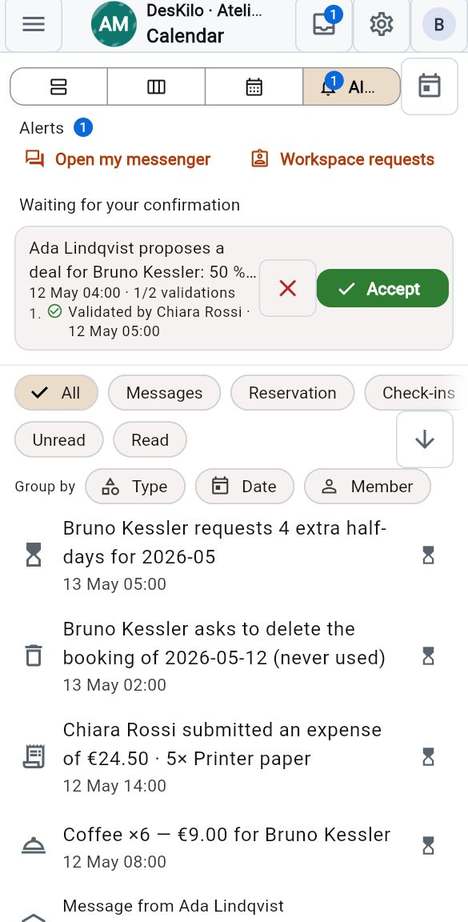
  4. Open Events. Waiting for your confirmation shows what is waiting, and a row shows "1/2 validations".

Good to know

  • The editor itself says Not enough eligible validators. when a count clearly exceeds the people available. It does not catch every case.
  • A solo owner who asks for something for themselves is waiting for someone else: either add an administrator, or switch on The owner may validate their own under Chained validations.
  • Pausing or removing an administrator can leave a rule short. Recount after every change of team.

Result Every rule can be answered by people who exist.

See also: Required validations · Keep it consistent

The first week of your members

OwnerAdministrator

You want your first members to succeed without asking you. What you tell them in the first week decides how much you answer in the second.

Before you invite anyone

  1. Sign in as a second person on a test account and join your space. Check that you can open the plan and book a seat.
  2. Approve that account as a member, and have the second validator approve too if you require two.

Steps

  1. Send the invitation message. It tells people how to download the app, create an account and join. See Join a workspace.
  2. Approve each newcomer the same day. A person waiting for a day starts with a doubt.
  3. Tell them the three first things: the plan and booking (Reserve a place), checking in (Check in and out), and where their requests wait (Events).
  4. Tell them what you see about them and what they control (Who can see my data).
  5. Name one person to ask, and where: the messenger, or the desk.

Good to know

  • When an administrator does something for a member, it stays pending until the member confirms. Warn them, or the first booking you make for someone will look like a mistake.
  • Members who do not use push notifications still find everything under Events.
  • On the first Reserve visit the Get started card shows owners what is still missing. Members have their own short tips. See The Get started card and the tips.

Result People who know how to book, how to check in and whom to ask.

See also: Week 0 to week 4 · How members are told

Chapter 05

Money and tax

For owners and billing administrators who are about to decide how a space is paid for. This chapter is about the decisions and their order; the clicks are in the user guide, and every section links to them.

Careful DesKilo records, calculates and prints what you declare, and it checks that the required details are present. It does not certify your invoices, your VAT treatment or your books. Wherever this chapter says "ask your accountant", please do.

In this chapter:

  • Whether members pay at all, and who issues the invoices
  • How a tariff is built, with figures from the demo space Atelier du Marché
  • How members pay you
  • Your legal identity, and the questions to bring to your accountant
  • Manual or automatic invoicing, reminders, and VAT in outline
  • The money decisions that cannot be taken back, and how to rehearse safely

Decide first: do members pay, and who issues the invoices

Owner

You choose how far DesKilo goes in your money. Everything else in this chapter follows from this one choice, and it is easy to change upwards later, hard to change downwards once invoices exist.

Before you start

Answer two questions: do members pay you for the space, and do you want the legal invoices to come out of DesKilo?

Path Choose it when What happens
1. No money The space is free, or members are friends who share the rent outside the app You leave the money features off. Members book; nobody is billed.
2. Statements and payments, invoices outside You already have an accountant or an invoicing tool, or you work in a country DesKilo cannot issue invoices for Members have a monthly statement, you record the payments you receive, and you export the figures for your accountant. The legal invoices are produced elsewhere.
3. Invoices issued by DesKilo You are in France or Germany, and you are either VAT-registered or outside the scope of VAT (an association, for example) DesKilo produces signed, numbered invoices from what was booked, with your legal identity printed on them.

Steps

  1. Pick your path from the table.
  2. For path 2 or 3, switch on the money features you need in Features: Invoices is the base of everything that is issued, and the features below it (Subscription invoices, End-of-month invoices, Payment reminders, VAT management) come on one by one.
  3. For path 3, continue with your legal identity before the first booking, not after.

Good to know

  • In-app invoice issuing exists today for a workspace in France or Germany. In any other country, use path 2: statements stay available.
  • The server refuses to issue, and the list Complete these details before issuing says why, when a detail is missing or when the treatment is one DesKilo does not handle: cross-border sales, reverse charge, export and VAT-exempt invoices must be reviewed and issued outside the app with your accountant.
  • A seller on the small-business exemption scheme (franchise en base, Kleinunternehmer) cannot issue invoices in the app: the server refuses the exempt VAT category. Keep path 2, and issue those invoices elsewhere.
  • Switching a feature off stops new business of that kind; it deletes nothing.
  • You can stay on path 2 forever. Many associations do.

Result

You know which of the three paths is yours, and which features it needs.

See also: Invoicing at a glance · Switch whole processes on or off

Decide first: do members pay, and who issues the invoices

Design a tariff

OwnerBilling administrator

You turn "what is a place worth?" into numbers DesKilo can apply every month without you.

Before you start

Keep the model in mind. It reads from left to right, and each step feeds the next:

  1. Subscription percentage: A member holds a percentage of the month: 25, 50, 75 or 100 %, or a value you allow.
  2. Half-day allowance: The percentage becomes a number of half-days for the month: the number of open days, times two, times the percentage, rounded up.
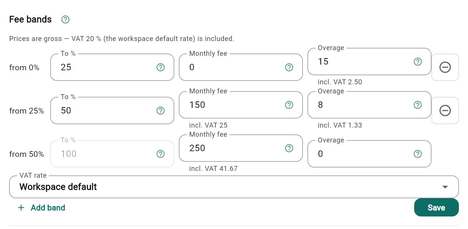
  3. Fee band: The percentage falls into one band, which gives the monthly fee and the price of an extra half-day. A band covers "above its start, up to and including its end", and the bands together must cover 0 to 100 % without a gap.
  4. Overage policy: When the allowance is used up, each member is either blocked, charged the overage price, or asked to buy a package.
  5. Packages and services: A day package sells extra half-days in advance at a price you set; services (a coffee, a locker, printing) are sold on top.

Steps

  1. Decide the percentages you want to offer under Subscription levels, and whether an owner may type a negotiated value (see Subscription levels).
  2. Set one row per range in Fee bands: its upper limit, the monthly fee and the overage price (see Fee bands).
  3. Decide the default for members who run out: When days run out.
  4. Add the Day packages and services you sell.

Good to know

  • The arithmetic is frozen on every issued document. Changing a price changes next month, never a month already invoiced.
  • Opening hours and closure days decide how many open days a month has, and so the size of the allowance. Set them first.
  • A member with no subscription is for visitors who buy carnets; they cannot be on pay-as-you-go.

See also: Billing · A member's subscription

Design a tariff

A worked example

OwnerBilling administrator

You follow one member through one month with the figures of Atelier du Marché, so you can check your own numbers the same way.

Before you start

The demo space has three fee bands, in euros and VAT included. The figures are the demo's own, not a recommendation.

Band Monthly fee Extra half-day Half-days in a 22-open-day month
up to 25 % 0.00 15.00 11
above 25 %, up to 50 % 150.00 8.00 22
above 50 %, up to 100 % 250.00 0.00 44 (at 100 %)

Steps

  1. A member holds 50 %. In a month with 22 open days the allowance is 22 × 2 × 50 / 100 = 22 half-days.
  2. 50 % falls in the second band (above 25, up to 50): the fee is 150.00, whatever the member uses.
  3. The member books 24 half-days. Two are over the allowance, at 8.00 each: 16.00.
  4. The month costs 150.00 + 16.00 = 166.00, before any service. In the demo the prices are gross: the 20 % VAT is inside them, and the screen shows it under each price.
  5. Compare with a package: the demo's 5-day pack costs 40.00 and adds 10 half-days (5 days, two half-days each), that is 4.00 a half-day. Against 8.00 of overage it pays off from the sixth extra half-day in a month.

Good to know

  • An overage price of 0.00 means extra half-days cost nothing under pay-as-you-go.
  • The statement a member sees shows the same lines: fee, included, used, extra, overage.
  • Prices are shown including VAT when VAT is on; the tax is extracted from them.
  • If a member and you agree on other conditions, see price negotiation.

Result

You can predict a member's bill from three numbers: their percentage, the open days, the bookings.

See also: Read your statement · What each booking cost

A worked example

Price negotiation

OwnerBilling administrator

You want one member to pay different conditions from the tariff, in a way that leaves a trace.

Steps

  1. Switch on the price negotiation feature in Features.
  2. Propose conditions on the member page: a different monthly fee, overage rate, discount on supplements, unit prices, or occupation percentage (see Price negotiation).
  3. Let the validation rule for price negotiations decide who confirms it.

Good to know

  • The tariff stays the default; a negotiated price belongs to one member.
  • It is seen by the member, the owners and the people with the right to view commercial agreements, and every read is logged.
  • Decide your policy before you open: one exception granted quietly becomes the price everyone asks for.

See also: Your negotiated prices

How members pay you

OwnerBilling administrator

You choose where a member's money goes, and how much of the work DesKilo does for you.

Steps

  1. Start with the free route: fill the payment instructions: your IBAN and bank details, and any of PayPal.me, Wero, Lydia or Wise you accept, plus a reference hint.
  2. Members see these details on an unpaid statement. When a payment reaches your account, you or a billing administrator record it.
  3. Only if you want members to pay inside the app, connect a provider in Online payments: PayPal, Stripe or Mollie. It needs the Online payments feature and your own account at the provider.

Good to know

  • DesKilo records payments; with the manual route it never moves money.
  • A provider charges its own fees, takes the keys of your account (the credentials sheet explains how they are entered).
  • With Online payments off, a new online payment is refused; one already open can still settle.
  • A space built from a template does not carry payment details: enter them in each space. A configuration export does carry them.

See also: Pay what you owe · Provider credentials

How members pay you

Your legal identity, and what to ask your accountant

Owner

You tell DesKilo who is selling, so every invoice names you correctly. This is the part to settle with a professional.

Before you start

The screen is Legal identity & e-invoicing. Have these ready:

  • your organisation type: a business, or a non-profit association;
  • your VAT regime: outside the scope of VAT, VAT-exempt (small-business scheme), or VAT-registered. The app can issue invoices for the first and the last only; with the small-business exemption, the screen records your status but invoices must be issued elsewhere (path 2);
  • your registration number, and your VAT number if you have one;
  • your postal address, as it appears on your registration;
  • the reason no VAT is charged, if you charge none.

Careful Choosing the regime is a tax decision, not a software setting. An association with no trading activity is normally outside VAT, and the screen warns you if you pick "exempt" for one. Confirm the choice before you issue the first invoice.

Steps

  1. Open Legal identity & e-invoicing and work from the top: the VAT regime first, then the identifiers, the address and the Invoice mentions.
  2. Fill the payment terms, the late-payment mentions and the other mentions your country requires (see Your legal identity).
  3. Tap Save, then read the invoice template once with your accountant (see The invoice PDF template).

Tip Questions to bring to your accountant:

  1. Which organisation type and which VAT regime am I in?
  2. What are my registration number and my VAT number, and how do I write them?
  3. If I charge no VAT, which legal wording justifies it?
  4. Which mentions must appear on my invoices (payment term, late-payment penalty, recovery indemnity, early-payment discount, insurance)?
  5. How should invoices be numbered, and does the number restart each year or each month?
  6. When does VAT on my services fall due under my country's rule (payment, service month, invoice), and should I opt for another basis?
  7. Must I send e-invoices to a government platform, and which one?
  8. Do I need periodic VAT returns, and how often?

Good to know

  • Invoices already issued keep the identity they were signed with; a change applies to the next ones.
  • Only an owner or an active co-owner can open this screen, and the Invoices feature must be on.
  • A space made from a template does not carry your identity: enter it again. A deployment between the two sides of a pair does carry it.

See also: VAT regime · The e-invoicing platform · Organisation type

Your legal identity, and what to ask your accountant

Invoice by hand or automatically

OwnerBilling administrator

You decide whether a person presses the buttons each month or DesKilo does.

Steps

  1. For a first month, work by hand: open Invoicing, read To issue, and issue one member's invoice (see Issue an invoice).
  2. For a routine, use the month-close wizard: it walks through Review, Issue, Send, Remind, Payments, Match, Close and Summary.
  3. To automate, switch on Subscription invoices and End-of-month invoices in Features, then set the days in Invoice schedule.

Good to know

  • Two documents exist per month: the subscription fee, issued ahead of the month, and what the month actually cost, issued after it. An invoice can be dated a few days ahead (three by default, set in the invoice schedule), so one dated 29 August can name September.
  • On the server, a daily run issues both when the installation's database has its scheduler enabled; if you are unsure, ask the operator.
  • Each kind of invoice (subscription, end-of-month) can be issued once per member and month. Invoices cannot be edited or deleted; a wrong one is marked erroneous and replaced.
  • By default the owner and co-owners issue invoices. Admins issue invoices extends this to administrators.

See also: The Invoicing screen · Chase and settle open invoices

Payment reminders

OwnerBilling administrator

You decide how late is late, and who does the chasing.

Steps

  1. Switch on Payment reminders in Features. It sits under Invoices.
  2. Set the number of levels and the delays in Reminder rules: days until the first reminder, days between reminders.
  3. Decide whether reminders leave on their own: switch Automatic reminders on in the same dialog (see Automatic reminders); the feature Automatic payment reminders must be on too.

Good to know

  • The delay before the first reminder is also read as your payment term. Set it with Payment terms.
  • Automatic reminders run once a day on the server when the database has its scheduler enabled. They also run when someone who may issue invoices (an owner, a co-owner, or an administrator if Admins issue invoices is on) opens Finances, so a space without the scheduler still gets them, on the days someone looks. The switch and the feature description say this too; your server operator knows which applies.
  • The Payment reminders feature only makes the rules available. A reminder leaves on its own only when Automatic reminders is switched on in the reminder rules, which is off until you choose it.
  • They skip an invoice with a payment pending or on hold, and an invoice without a recorded payment term.
  • The member gets an alert in their feed and, if push is set up, a generic notification; see Tell people.

See also: Payment terms

Payment reminders

VAT in outline

OwnerBilling administrator

You want to know what VAT will ask of you before you switch it on.

Steps

  1. Only if you are VAT-registered, switch on VAT management in Features.
  2. Set the rates in VAT: Use the usual rates for your country, then mark exactly one as the default (see Setting the rates).
  3. Give each rate its group, and an exemption reason where it applies (see VAT groups).
  4. When the law changes a rate, use Change by law so older invoices keep their rate (see Change a rate by law).
  5. If you must file returns, switch on VAT declarations and prepare each period in VAT declaration.

Good to know

  • A catalogue of rates ships for the EU member states, Switzerland, Norway and Canada. Keeping it current when a government changes a rate is your job.
  • Registered without a default rate in force, the server refuses to issue. The description of VAT management and the warning on the legal identity screen say so.
  • The server computes each return from your invoices, payments and tax points. File it yourself with the tax authority, then mark it filed with the receipt reference it gave you: the app transmits nothing.
  • Choose how often you file under VAT return period on the legal identity. A filed period is locked: what changes in it later is declared as a correction in the next return.
  • The declaration journal has its own number series.

See also: VAT regime · When VAT falls due

VAT in outline

What cannot be undone

Owner

You want to know, before the first invoice, what you will not be able to change afterwards.

Careful From the first issued invoice, the items below are permanent. Decide them with your accountant first.

Decision What becomes permanent When
An issued invoice It is signed and immutable: amounts, parties, VAT breakdown and tariff arithmetic stay as printed. A correction is a cancellation, a credit note or a refund, each a new document. At issue
Invoice number Numbers are gapless and drawn in the database at the moment of issue. The next number can be raised, never lowered. A change of format applies from then on. A restart cannot be more frequent than the date the number prints. At the first issue
An invoiced month A month with an invoice for a member is closed for that member. Closure days and holiday imports skip such months and name them. At the first invoice for it
VAT rates Rates are versioned by date, never edited. A submitted VAT declaration is never recomputed. At the first use
Currency and country Amounts are stored as whole minor units without conversion. Once the space has issued a document or recorded money, the server refuses to change either. At the first document or payment

Steps

  1. Open Number sequences and set the prefix, the suffix, the date part, the digits and the restart for each journal (invoices, credit notes, VAT declarations, members, payments). The screen needs the Number sequences feature.
  2. Show the result to your accountant before the first invoice.
  3. Choose the country, currency and time zone in Workspace settings before anybody books.

Good to know

  • Numbers are not wasted: a document that fails to issue takes none.
  • The two states of a space, test and production, exist so that nothing here is tried for real; see a safe dry run.

See also: The invoice register · Currency and time zone

What cannot be undone

A safe dry run in a test space

Owner

You rehearse the whole money routine once, with nothing real at stake.

Steps

  1. Create or open a test workspace (One test workspace, or the DEV side of a linked pair); see Test space and Environments.
  2. Enter the legal identity, the rates, the tariff and the payment instructions as you intend to run them.
  3. Invite two or three people to book a few days; add a service for one of them.
  4. Run the month-close wizard from start to end and read the invoice PDF.
  5. Record a payment, let a reminder fall due, and read the statement as the member.
  6. Show the PDFs and the accounting export to your accountant.

Good to know

  • A test space watermarks every document and says it is a test; nothing is owed.
  • Declaring a space production removes the watermark; invoices already issued keep theirs.
  • The pair can pull the configuration from one side to the other, but credentials do not travel.

Result

A first month you have already seen, and a list of questions answered before they cost anything.

See also: The two environments · Accounting exports

Chapter 06

Tell people

For owners who want members and administrators to hear about what matters, and only that. This chapter describes what DesKilo really sends, who receives it, what you configure and what you leave to the operator of the installation.

In this chapter:

  • The channels, in plain words
  • A table: what happens, who is told, by which channel, what a member can change
  • What you configure, and what the operator must do for push
  • A test plan with two accounts
  • How to avoid both overload and silence

The channels, in plain words

OwnerAdministrator

You want a clear picture of the ways DesKilo can reach a person, before you promise anything to your members.

Before you start

There are six ways, and they are not equal. Most of the work is done inside the app.

Channel What it is What it needs
The events feed and the bell Everything that happens in the space is written to a feed. The bell counts new updates and the decisions waiting for you. Events tab; Notification feed grouping is an option on top
Messages Private and group conversations between members, with read receipts and links to a booking or a space. Member notifications
Push A short notification on a phone or computer, even when the app is closed. The text is generic: no names, no times. Push notifications on, and a push set-up by the operator; see the operator's part
The check-in reminder A notification on the member's own device, 15 minutes before a booking they have not yet checked in to. The member's system permission. Not in the browser version.
Payment reminders An alert in the feed and a push to the member whose invoice is overdue. Payment reminders and Automatic payment reminders; see Payment reminders
WhatsApp A group link you publish, and the WhatsApp number a member chooses to share. The app opens WhatsApp; nothing is sent from the server. WhatsApp integration

Good to know

  • DesKilo sends no e-mail of its own beyond the account e-mails (sign-up confirmation, password reset). Invitations are texts you share from your own phone.
  • There is no per-event subscription: a member cannot pick "tell me about expenses but not about bookings".
  • A notification may be delayed or lost like any push; the feed and the message list are the record.

See also: Notifications · Events & confirmations

The channels, in plain words

Who is told what

OwnerAdministrator

You want to know, event by event, who hears about it and how.

Before you start

Push is sent only for the five lines marked "push" below. Every other event (a booking made, a payment recorded, a member joining) appears in the feed and nowhere else.

Source Event Who is told Channel What the member can change
Validation rules A request needs a confirmation The people the rule names (feed, Waiting for your confirmation); the push goes only to the member the request is about, never to the person who made it, so validators are pushed only when they are that member. Text: "Someone needs your confirmation." Feed, bell; push Switch push off on the device
Reservations An administrator removes or overrules a booking The member displaced, and every active administrator and owner except the one who acted. Text: "A reservation was removed by an admin." Feed; push Switch push off on the device
Payment reminders An invoice is past its term and a reminder level falls due The member the invoice is for. An owner's own invoice reaches the owner. Text: "A payment reminder is waiting for you." Feed alert; push Switch push off on the device
Member notifications A new message Direct message: the recipient. Group: the participants except the sender. A conversation muted by a member stays silent for that member. Text: "You have a new message." Messages, bell; push Mute, pin or archive a conversation; switch push off
Message mentions A group message names someone The people named, even in a muted conversation. Text: "You were mentioned in a conversation." Messages; push Switch push off
Reservations A booking is ahead The member who booked, on their own device, 15 minutes before it starts, for bookings in the next seven days Local notification Refuse the system permission
WhatsApp integration Nothing is sent The group link is shown in the directory; a member may share their number Opens WhatsApp Share or hide the number

Good to know

  • When the app is open, a removed-booking push is replaced by a notification in the member's language. For messages, mentions, confirmations and payment reminders the open app currently shows its generic text ("Someone needs your confirmation."). The generic English texts of the table appear when the app is in the background or closed.
  • An administrator is told only about what they act on or what a rule gives them; there is no "everything" digest.
  • Members see their own events; administrators and owners see everyone's.

See also: Validation rules · Messages

Who is told what

What you configure

Owner

You decide which of these channels exist in your space and who is asked to decide what.

Steps

  1. Open Features and check the notification switches: Push notifications, Member notifications, Events tab, Notification feed grouping, Payment reminders, Automatic payment reminders and WhatsApp integration.
  2. Set the validation rules: for each kind of request, how many validations are required and who may give them. This decides who is asked, and so who sees a decision waiting.
  3. Decide whether an administrator's or an owner's own request settles itself; see Auto-validate an administrator's own request and Auto-validate an owner's own request. A request that is settled already never pings anyone.
  4. Write the invitation message members receive, and paste the community group link; see Invitation message and WhatsApp group.
  5. Switch on Booking deletion requests if members may ask to delete a past or checked-in booking: someone then has to answer.

Good to know

  • Defaults for a new space: the events tab, member notifications and grouping are on; Payment reminders and Automatic payment reminders are on as features, but no reminder is sent until you switch Automatic reminders on in the reminder rules.
  • Push notifications is on by default, but it delivers nothing until the operator has set it up.
  • Switching a feature off stops new activity of that kind. It does not delete what exists.
  • Roles decide who can see and answer what; see The role matrix.

See also: Who may validate · Required validations

What you configure

The operator's part: making push work

OperatorOwner

You want push on members' phones, and you need to know who does what.

Before you start

Push does not come with the app by itself. If you run your space on the shared reference installation, ask its operator whether push is configured. If you run your own installation, you or your technical person are the operator.

Steps

  1. Create a Firebase project and build the app with it. Without this the app stays on local notifications only, and a member sees This build has no push notifications. The build prepared for F-Droid has no push at all (F-Droid status).
  2. For iPhone and Mac, add an Apple push key to the Firebase project.
  3. Store the Firebase service-account key as a secret of the server and deploy the push function.
  4. On your own installation, point the push_config row of your database at your own push function URL and key. It is seeded with the address of the reference installation.
  5. Test it with two accounts, as described in the test plan.

Good to know

  • Without steps 1 to 4, nothing is pushed, whatever the switches say. The feed, the bell and the messages still work.
  • The detailed checklist is for the operator: see Platforms and Your own server.
  • Push text never carries a name or a time: this is deliberate, for privacy.

See also: Push notifications on this device

What members control

OwnerAdministrator

You want to tell your members honestly what they can switch off.

Steps

  1. A member opens Privacy & data and uses Push notifications on this device to stop or resume push on that device.
  2. In Messages, a member presses and holds a conversation to Pin to top, Mute notifications, Mark as unread or Archive.
  3. In the system settings of the phone, a member can refuse notifications altogether, check-in reminders included.
  4. In their profile, a member decides whether to share a WhatsApp number.

Good to know

  • A muted conversation stays silent but is still counted; a mention overrides a mute.
  • A member who turns push off on one device is not affected on another.
  • There are no per-category switches. If a member needs less noise, mute conversations; if they need none, switch push off.

See also: Notifications · Your data, your rights

What members control

A test plan: send yourself one of each

OwnerAdministratorOperator

You make sure each channel works before your members depend on it.

Before you start

Do this in a test space (see a safe dry run). You need two accounts: yours as owner, and a second one as a member, on another phone, another browser, or the same phone after signing out. The demo space lets you see the screens with its personas, but it sends no real push.

Steps

  1. Message: from the member account, write to the owner in Messages. On the owner account, the bell counts it and the conversation shows unread. Open it: the member's message shows a read receipt.
  2. Mention: in a group conversation, name the owner (the mentions feature of messaging must be on). If push is set up, the owner's phone shows "You were mentioned in a conversation."
  3. Decision: as the member, ask to delete a past booking (the Booking deletion requests feature must be on). The owner sees it under Waiting for your confirmation in Events; answer it and watch the member's feed change.
  4. Removal: as the owner, remove a future booking of the member. The member's feed shows it, and a phone with push shows "A reservation was removed by an admin."
  5. Reminder: as the member, book a place that starts in about 20 minutes (a booking starting in under 15 minutes gets no reminder). About 15 minutes before it starts, the member's phone shows the check-in reminder.
  6. Payment reminder: with Payment reminders on, switch Automatic reminders on in the reminder rules with a short first-reminder delay, issue a trial invoice that has a payment term, wait past the delay, then open Finances as an owner or co-owner; the member's feed shows the alert.
  7. Mute: as the member, mute the conversation, send another message from the owner, and check that nothing rings but the unread count rises.

Good to know

  • Steps 2 and 4 show a push only if the operator's set-up is complete. If they fail while the others work, the fault is in the set-up, not in your rules.
  • On the browser version of the app, there is no check-in reminder.
  • A phone that blocks notifications shows nothing at all; check the system settings first.

Result

You have seen, with your own eyes, every channel a member will rely on.

See also: The channels · Start a conversation or a group

Avoid overload, and avoid silence

OwnerAdministrator

You want people to be told what needs them, and not drowned.

Steps

  1. Keep Notification feed grouping on: members and administrators can fold the feed by type, day or member.
  2. Ask for validation only where a decision is real: every rule that requires validation creates a request somebody must answer. See Validation rules.
  3. Use the auto-validation switches for requests where the answer is obvious.
  4. Look at What needs you from time to time: it ranks what is waiting.

Good to know

  • Overload comes from rules that ask too often or from too many administrators on one rule.
  • Silence comes from a rule with nobody to answer it: requiring two validations when only the owner exists, or listing administrators who have left, leaves requests waiting for ever. The setup readiness card flags any rule with too few validators, and What needs you raises it.
  • Silence also comes from push without set-up, from members who turned push off, and from a system that blocks notifications.
  • Automatic payment reminders are not a substitute for looking at the open invoices from time to time.

See also: Who may validate · Required validations

Chapter 07

Documents and reports

Everything DesKilo prints or exports comes from one engine and one place to design it. This chapter tells you which documents exist, the order in which to prepare them, what you may hand to your accountant, and where an AI assistant can help you and where it must not. The clicks are in the user guide; here you get the reasons and the order.

The running example is the demo space Atelier du Marché.

The documents the app produces

OwnerBilling administrator

You want to know what exists before you design anything, and who receives each document.

Every document is one kind. Each kind has its own design, so changing the invoice never changes the statement.

Document Who receives it Where you find it
Invoice and credit note (one shared design) The member, or the customer of an invoiced month Invoicing
Proforma A member who needs a quote or a prepayment request Same screen
Statement The member (their account over a period) The statement
Agreement The member (the negotiated conditions) Price negotiation
Payments, usage The member, the billing administrator Payments · Usage
Reminder letters, level 1 to 9 The member with an overdue invoice Reminder rules
Workspace report and workspace status You, the board, an auditor Reports
VAT declaration You, then the tax platform The periodic VAT declaration
Badges, space QR codes Members at the door, your walls Space QR codes · Badges

Good to know

  • The Reports screen groups them under Financial reports, Workspace documents, Business analytics and Templates, depending on your permissions.
  • A few reports (chart of accounts, badges, QR cards) have one shipped layout. The others can be redesigned.
  • Documents drawn from a test space carry a watermark that says so. See What a test space is for.

See also: Reports · The invoice PDF template

The documents the app produces

The designer, in owner terms

OwnerBilling administrator

You want a letter that looks like yours without learning a language of markup.

A document is a page made of bands. The header carries your letterhead and the recipient. The body carries the lines. The continuation strip starts on page two, and the footer repeats on every page with your payment terms and legal mentions. You edit them in Design and check them in Preview; Markup shows the same bands as text for the day you need it.

Piece What it gives you Choose it when
Presets (Professional, Classic, Simple, Detailed, Formal letter) A finished design to start from. The presets differ for invoices, proformas, statements, agreements and reminders; structural documents have one shipped layout Always: start from Professional and change little
One design per language A member reads the document in their own language Your members do not all read one language
Letterhead and window envelope Sender, recipient and body placed where a window envelope expects them You post invoices on paper
Positioned layout (XML) Each element placed by millimetres, for a national form A document must match a fixed form
Image library A logo, a stamp or a signature reused across designs You have a logo
Design exchange A design written to a file and read back A person or a tool outside the app edits it

Two facts keep you from surprises. The letter standard prints a recipient in the window on the right for a French space and on the left for a German one, unless you override it. And a design that fails to render never blocks a document: the built-in layout takes over.

Careful The wording in a design is not legal advice. Appearance and translation alone do not establish legal compliance or satisfy an electronic-invoicing obligation. What an invoice must say is decided under Your legal identity, and confirmed by your accountant.

See also: The report editor · Ready-made templates · One design per language

The designer, in owner terms

The sequence to follow

OwnerBilling administrator

You are about to design documents and want to do it once, in the right order.

Steps

  1. Fix your legal identity first: organisation type, address, registration, VAT regime and the special mentions. A design prints only what you entered there. See Your legal identity.
  2. Open Report editor, pick the document and start from Professional under Templates.
  3. Add a language version for each language your members read. Choose EN, FR, DE, ES or IT under the document. See One design per language.
  4. Check each one with Quick preview. It uses your newest invoice, or sample data when there is none.
  5. Rehearse on a test space: enter it, issue a trial invoice, print it and send it to your accountant. See What a test space is for.
  6. Freeze the design before the first invoice. Write down what you decided, then change a design only when a rule changes.

Good to know

  • Replacing a layout can be undone with Undo until you leave the editor.
  • An issued invoice is a frozen document. Changing the design later changes new documents, never the ones already issued.
  • With the same wording in two languages, ask someone who reads the second language to read the preview.

Careful The invoice number and the legal mentions printed on an invoice become permanent with the first issued invoice. Settle them before it, not after.

Result: every document you will send looks like yours, in each language, and has been read once by someone other than you.

See also: Your legal identity · The invoice PDF template

The sequence to follow

What you hand your accountant

OwnerBilling administrator

You want your accountant to have what they need, and to know what the app does not claim.

Start from the Invoice register, which lists every invoice with its status, and tap Accounting export. Each format says in the sheet what it claims.

File What it claims What it does not claim
FEC The French format an audit asks for, rebuilt from invoices and payments Complete books. Your accountant completes them
DATEV An exchange file for German accountants' software, read and posted by a person A filing, or a handover for a tax audit
SAF-T The international structure, deliberately partial: invoices and payments, no general ledger A complete accounting file. It says so in its header
SAF-T PT, Sage 50 A Portuguese regulatory format (uncertified) and a British/Irish exchange format, depending on your country A filing or a certification
Accounting CSV, Audit trail, Year archive (zip) A reading aid for your accountant A filing

The list of formats depends on your country. FEC and DATEV ask for your account numbers, and FEC also for your registration number: have them ready. The VAT figures for the period are in The periodic VAT declaration.

What the app does not do

  • It keeps invoices, payments and a running account per member. It does not keep a double-entry ledger over a chart of accounts, so it cannot replace accounting software.
  • Some obligations remain with you and your accountant: complete books, certified software where your country demands it, and the target authority's acceptance.
  • A file is blocked until the problems in the source are fixed.

Good to know

  • Exporting is a read. You can repeat it for any period.
  • Prepare a short brief for your accountant before the first invoice: your VAT regime, when VAT falls due, the numbering you chose and the exports you will want. See AI help.

See also: Accounting exports · The invoice register · VAT account

What you hand your accountant

Business analytics in outline

OwnerBilling administrator

You want to see how the space performs once it runs, without a spreadsheet.

Business analytics shows figures by area: invoiced and collected, occupancy and capacity. You choose a period (month, quarter or year), compare it with another, save a view and export it as a PDF. You see only the analyses your role may read.

Collected is payments matched to invoices. It is not a profit, because no costs are in the figure, and the current period is partial.

For a document about the whole space, the Workspace documents tab holds the Workspace report, Space QR codes (PDF), Export data (Excel) and Export configuration (PDF). Use the last two as a recovery copy before a big change.

See also: Business analytics · Exports

Business analytics in outline

Help from an AI assistant

OwnerCo-owner

An AI chat tool can save you hours on the words around your setup. It cannot be the one who decides what is legally or fiscally right. This section is about the tools you use outside DesKilo; the assistant connection inside the app is described at the end.

What an outside tool is good for

  • Drafting the invitation message you send to your first members. See The invitation message. The placeholders such as the first name or the invite link stay as they are.
  • Wording the special mentions you will submit to your accountant, as a draft to check, never as a final text.
  • Translating a design's wording into another language, so that you only have to review it.
  • Explaining a report or a statement to a member in plain words.
  • Preparing the brief of your choices for your accountant: country, organisation type, VAT regime, numbering, exports.
  • Drafting the picture behind your floor plan, from photographs, in an image tool.

What it must not decide

  • The legal mentions of an invoice, the VAT treatment of an activity, the reason no VAT is charged, and the VAT rates.
  • Anything that becomes permanent: an invoice number format, a VAT regime, the currency, an issued invoice.
  • Whether something is compliant. A confident answer is not a verified one, and your accountant is.

The safe workflow

  1. Ask the tool for a draft. Give it a scenario, not your members' names or any personal data.
  2. Paste the draft into the field, in the Report editor or in the settings.
  3. Look at it in Preview with sample data.
  4. Send the text that has legal weight to your accountant and wait for the answer.
  5. Try the whole flow on a test space before the real one.

Careful Do not paste a token, a password, a bank number or a member's personal data into an outside tool.

DesKilo's own assistant connection

The app lets an assistant such as Claude or ChatGPT act for a member through a protocol called MCP. It is off by default and is a feature you switch on (MCP interface, see A feature switch). It is made in layers, so no one person can open everything.

Layer Who What they do
The installation The operator Turns assistants on for the installation.
The workspace You, the owner Switch the feature on, then choose in What assistants may do which services are offered and whether an assistant sees own records only or workspace-wide.
The database A database administrator Approves each person's request.
The member Each member Asks once for approval and chooses this workspace.
A request with impact The member, on their device Confirms the exact request, which still follows your validation rules.

A member's assistant works on that member's own records: find and describe free places, favourites and ratings, book, change or cancel one's own reservation, ask to delete a started booking, check in and out, read one's statement and invoices, and list and answer the validations one is asked for. A few requests (invoice issue, invoice void, refund, member status change, subscription share) are for staff only: they need staff rights, the person's confirmation in the app, and then your validation rules. It has no operation that configures a space: it cannot switch a feature on, set a tariff, change a role or build a plan. It cannot set your space up for you, and it acts only within what you expose.

Good to know

See also: Assistants: what they are · Connect an assistant

Help from an AI assistant

Working with a developer: the design file and the report tool

OwnerOperator

Someone technical is helping you, and a design must be edited or proved outside the app.

Steps

  1. In Report editor, use Export this design to write the design as one file. The file says what its fields mean and which placeholders exist. Import a design reads it back; a file for another report, or from a newer version, is refused with the reason.
  2. A developer can proof the design from a terminal with the report tool, described in the technical administrator's guide: check measures a layout against the window-envelope contract and exits non-zero when ink lands in the window; render makes the PDF; sample writes a data file with every placeholder; describe lists the vocabulary.
  3. Back in the app, import the file, preview it with Quick preview and Save.

Good to know

  • The design exchange is a feature (Export and import report designs), under the report features of Features. Switch it on first.
  • The tool needs the source code of the app; it is for the person who runs your installation, not for daily use.

See also: The report editor · The invoice PDF template

Chapter 08

Keep it consistent

A space can be wrong in two ways: a setting that is missing, and two settings that contradict each other. DesKilo catches some of both, and says so on screen. This chapter lists what it catches and where you see it, says plainly what it does not catch, and gives you an audit to run before the doors open and a short routine to run every month.

In this chapter:

The running example is Atelier du Marché. Its owner, Ada, runs the audit once in a test space and once more in the real one.

The guards the app gives you

OwnerCo-ownerAdministratorBilling administrator

You want to know which of your mistakes the app will point out, and where it will do it, so that you look in the right place.

Guard What it catches Where you see it
A feature that needs another A feature cannot work without the one it needs. Switching a feature on switches its parent on and names what came on. Switching a parent off holds its children back and keeps their own choice. Features: the switch flow with its preview, Requires… and Waiting on the feature above
A process held back A feature that is on but waits for something that is off. Features, Processes view: the state Needs attention and its filter chip
The readiness list One line per area of the space, with its state, who acts and where to set it. Areas: Opening days, time zone and currency, Bookable places on the floor plan, Membership plans and tariffs, Invite the first members, How members pay, Roles and who validates requests, Export and recovery, What members may do, Details your features need (identity, bank, platforms), A first booking and, when relevant, The space's legal identity and address (only with Invoices on), Server and database version and Assistant access (optional) (the latter only with the MCP interface on). Setting up this space, at the top of Workspace
The line that stops a first booking The areas the list marks Needed for a first booking: a time zone, a currency, an open weekday, one seat, members who hold Book and use reservations (a new space grants them nothing), and, when a validation rule of any kind asks for more validators than exist, those validators. The rest is optional and can be set aside with Later. Before anyone can book here, on the Get started card of Reserve
The line that stops a first invoice With Invoices on, the space's legal identity and address. No invoice can be issued without them, so the area cannot be set aside. Setting up this space: the area The space's legal identity and address, marked Needed before invoicing; while it is the next step, the card's headline reads "Before invoicing: …"
What your features still need locally Bank details, an online payment provider, an e-invoicing account, a site. The legal identity is not listed here: with Invoices on it is an area of its own (above). The same card, area Details your features need (identity, bank, platforms), with Set up and Recommended
The invoice guard An invoice is refused until it is complete: the workspace address, its VAT number, a country France or Germany, a legal basis for an exemption, the member's name, address and VAT number when reverse charge applies, a VAT rate in force, an explanation for every line billed at 0 %. Cross-border, reverse-charge, export and exempt invoices are refused: issue them outside the app. Complete these details before issuing, with the missing items listed
The online payment guard With Online payments off, the server refuses a new online payment. One already open still settles. The payment screens (the feature row carries no note about it)
The validation guard Required validations above the people available, for any kind of request. Not enough eligible validators. in the rule editor; "A policy asks for more validators than this space has" in the readiness list, where Roles and who validates requests then becomes required
The currency and country lock Once the space has issued a document or recorded money, the server refuses any change of Currency or Country, from the settings form, an import or anywhere else. The time zone is not locked. "The currency and the country are fixed once this space has issued a document or recorded money. Nothing was saved." when you save Workspace
The owner inbox What is still to configure: one line "Set up: …" for each required area of the readiness list that is not ready, and one line "… switched-on features wait for “…”" for each switched-off feature that holds others back. What needs you; a tap opens the screen where it is set up, or Features
The number sequence guard A reset more frequent than the date printed in the number is refused. Number sequences, when you save
The maturity check A feature reviewed as Alpha or Beta. A confirmation before you switch it on, and a badge on every switch
The plan replacement check Replacing the floor plan or the settings from a file. A warning that it cannot be undone. The plan is refused once reservations exist

Good to know

  • Setting up this space is a list, not a lock. It never stops you from switching something on.
  • Most guards act when you try to issue, pay or book, not when you choose a setting. That is why the audit below exists.
  • The owner inbox (What needs you) raises only the required areas and the features held back. The optional areas stay in the readiness list: read it yourself.

See also: Avoid features that contradict each other · Check your space

The guards the app gives you

The mistakes the guards do not catch

OwnerCo-ownerBilling administrator

You want the honest list of what stays your responsibility. These are configurations the app lets you create and does not warn about. Each has a way to avoid it by hand.

Mistake Why nothing stops it Avoid it by
Choosing a country other than France or Germany and expecting invoices The app offers many countries and VAT rates, but issues invoices only for France and Germany. Nothing says so when you choose the country. Deciding before you promise members an invoice. Elsewhere, keep statements in the app and issue invoices outside it.
Being registered for VAT with no rate in force Issuing is refused, but only at the first invoice. The description of VAT management and the warning on the legal identity screen say so; nothing stops you earlier. With VAT management off, the configuration is hidden but the stored rates keep applying. Adding the rate under VAT before the first month-close, and running a trial invoice.
Online payments on with no provider You can switch it on; the missing provider shows only as an item in the readiness list. Connecting the provider first, then switching on.
Invoices on with no legal identity The feature is on from the first day. The readiness list marks the identity Needed before invoicing and What needs you raises it, but nothing stops you inviting members and running a month; the refusal comes at issue time. Filling in the identity before telling members they will be invoiced.
A rule needing more validators than you have The editor lets you save one above the people available. The readiness list then marks Roles and who validates requests as required, whatever the kind of request, but requests created before you fix it cannot be completed, and expire after seven days. Counting active owners and administrators after each rule. See Avoid requests that wait for ever.
Members who cannot open the plan In a new space the User card of Roles is empty. The readiness list marks What members may do until members hold Book and use reservations, but it checks only that one: the five other everyday permissions are yours to tick. Ticking the everyday permissions and joining once with a second account.
A space made from a template A template never carries the identity, bank details, sites or invitations. Treating the area Details your features need (identity, bank, platforms) as a to-do list.
A settings file that promises more than it delivers The file carries the role matrix with every permission, your own roles, every validation rule, the invoice and member numbering and whole-space prices; not the members, the VAT period, the space's name or e-invoicing credentials. When Configuration in the space file is off in the target, the import asks first: Switch it on and apply or Import without the configuration. A plan is not replaced once reservations exist. Re-entering what it does not carry by hand, and reading the preview before Replace and import.
Reminders that never run They run every morning on the server where the installation schedules jobs (pg_cron); otherwise when an administrator opens Finances. The switch and the feature description say so, but cannot tell which applies to your installation. They also stay silent when Automatic payment reminders is off. Asking the operator whether the scheduler exists, and opening Finances yourself if it does not. See Payment reminders.
Changing the time zone once money exists The server locks the currency and the country once the space has issued a document or recorded money, but not the time zone, in which every working day, half-day and closure day is counted. Choosing it on day one. See Decisions that are hard to undo.
Numbering or VAT period that does not suit your accountant's format The app does not compare them with the country's accounting export. Asking your accountant for the numbering format and the export they use before you issue. See Accounting exports.
Taking a test for the real space Beyond the watermark on printed documents, the difference is easy to miss. Looking at the test-space banner and the side shown in Me before you act.

Good to know

  • A kiosk with no kiosk member, a site feature with no site, push without a push service: Avoid features that contradict each other.
  • The app is stricter than it looks about invoices and looser than it looks about everything else. When in doubt, issue a trial invoice in a test space.

See also: A safe dry run

The pre-launch audit

OwnerCo-owner

You want proof, not a feeling, before you open. Thirty-one checks, in three levels. Run Open before you invite anyone, Run before you promise anything about money, Grow before the first invoice leaves. Do it in a test space first, with a second person.

Open: a place people can book

# Check Where Good looks like
1 Country, currency, time zone Workspace, General details Atelier du Marché: France, EUR, Europe/Paris, set before the first document or payment, after which the currency and the country are locked
2 Workspace language Same screen The language your invitations are written in
3 Open weekdays and hours Availability The days you open are ticked; the hours match the day
4 Closure days Availability, closure days Holidays and closures for the next months are in, before the first month-end
5 At least one seat Workspace editor Every room you rent has seats
6 Readiness Setting up this space Nothing under Opening days, time zone and currency, Bookable places on the floor plan or What members may do needs configuration
7 You booked a seat Reserve The seat is booked, checked in and cancelled without a surprise
8 The workspace ID Workspace ID & QR The ID is one you can say aloud; the QR is printed
9 Everyday permissions Roles User holds the six everyday permissions, Book and use reservations among them
10 A second account joined Another device It was approved and could open the plan and book
11 More than one person can act Members & plans An owner plus a co-owner or an administrator, all Active
12 Validation counts Validation rules No rule asks for more validators than active owners and administrators; Roles and who validates requests does not need configuration
13 The invitation in each language Community & invitations You read each version once; no tag is left unfilled
14 The side you are on Me The test-space banner is shown, or not, as you intended

Run: people pay and roles hold

# Check Where Good looks like
15 Fee bands Billing Every share a member can choose falls in a band; no gap between 0 and 100 percent
16 Plans offered Billing, levels Only the plans you want to sell
17 What new members start with New members, in Workspace The subscription and the rule when days run out are the ones you chose
18 Packages and services Billing, Services Names and prices read right to a member
19 How members pay How members pay in the readiness list The area reads Ready and the bank details you expect (IBAN, reference) are shown in Settings; a provider alone also turns it ready
20 Online payments Features Off, unless a provider is connected
21 Administrators Members & plans Each one is a person you would trust with every member's data
22 Administrator card of the matrix Roles You can read each tick and defend it
23 Who is told what How members are told Members find everything under Events; push only if the operator set it up
24 Kiosk and badges Features Off, or a kiosk member exists and badges are issued
25 Sites Features Off, or at least one site exists
26 Features held back Features, Needs attention The filter shows no process, and What needs you has no line about features that wait

Grow: invoices, tax and records

# Check Where Good looks like
27 Legal identity Legal identity & e-invoicing The space's legal identity and address reads Ready, and Complete these details before issuing shows nothing when you start a trial invoice
28 VAT regime and rates VAT The regime is the one your accountant gave; a rate is in force for your default
29 Number format Number sequences You read the preview and your accountant agrees
30 A trial invoice Test space, month-close wizard It issued, in each language your members read, without a missing item
31 A recent export Export and recovery "A recent export is on record"

Steps

  1. Print the three tables or copy them into your notes.
  2. Run Open and tick each line as you see the good column, not as you remember it.
  3. Do the same for Run and Grow in the test space, with your accountant for the lines of Grow.
  4. Repeat the lines that changed when you move to the real space. A template or a settings file does not carry all of them.

Result A list you can show someone, and a space you have seen working before anyone depends on it.

See also: Week 0 to week 4 · A safe dry run · The sequence to follow

The monthly routine

OwnerAdministratorBilling administrator

You want a short habit that keeps the space coherent, in ten minutes at month-end.

Steps

  1. Open Setting up this space. Every area still reads Ready, or Not needed here, or is set aside on purpose.
  2. Open Events. Waiting for your confirmation is empty or small, and no member has been Pending for more than a day or two.
  3. Recount the team. Anyone who left or was paused can leave a rule short. See Avoid requests that wait for ever.
  4. Close the month: closure days are entered, the month-close wizard is run, payment reminders have gone out (automatically each morning, or on opening Finances where the database has no scheduler). See The month-close wizard.
  5. Take the data export, and open Features to check that no process needs attention after the changes of the month.

Good to know

  • Writing the date of the last run on the first line of your notes tells the next person when it was last true.
  • Anything changed during the month in the role matrix or in a validation rule is worth one more check of the audit lines 9, 11 and 12.

Result A space that stays what you set up.

See also: The pre-launch audit

When something looks wrong

OwnerCo-ownerAdministrator

You want to know what to try, in what order, and whom to ask.

Steps

  1. Read the message on the screen. Most say what to do.
  2. Check the side. Look at the test-space banner and the side shown in Me. Documents printed on the test side carry a watermark and nothing there is owed; the real side issues invoices that are.
  3. Check Features and Roles: a missing function is a feature that is off or a permission nobody ticked.
  4. Open Setting up this space and read the area that matches the symptom.
  5. Prepare Support details under Help: choose Last hour or Last 24 hours, Prepare preview, read it, Save, and send the file. It holds counts and checks only, not identities, credentials or business records.
  6. Before you change anything big, take the data export (below).

Who to ask

About Ask
A setting of your space, a rule, a role You, then your co-owner
An invoice, VAT, a number Your accountant, with the trial invoice
An area that says Waiting for someone else or The server operator The operator of your installation
An assistant that is not approved A database administrator
An error you cannot explain Support, with the support file

The recovery export

  1. Open Reports and choose Workspace documents.
  2. Tap Export data (Excel). It needs the Data export (Excel) feature and the permission Export accounting and data. You get one ZIP: a workbook with a tab per dataset, a manifest counting the rows, and the stored files.
  3. Tap Export configuration (PDF) for a record of the parameters and, in Workspace, Export workspace (XML) for the plan and settings.

Good to know

  • A completed data export is recorded; the readiness area Export and recovery says so for 90 days, then reads that the export is older.
  • The PDF is a record, not a backup. Only the XML can be imported back, and it never holds members or money.
  • Keep the file somewhere only you can open: it contains your members.

See also: Support details · When something does not work · Export the data (Excel)

When something looks wrong

What cannot be undone

OwnerCo-ownerBilling administrator

You want one page that says what to slow down for. The full list, with what to do instead, is Decisions that are hard to undo. This is the recap.

Careful An issued invoice never changes and its number is never reused. A mistake is corrected with a cancellation, a credit note or a refund request, not with an edit.

Decision Permanent from Covered in
Invoice number format and sequence The first issued invoice Decisions that are hard to undo
A member's invoiced month The moment the invoice is issued Money
Legal mentions on the invoice The first issued invoice The sequence to follow
VAT regime and rates Rates are versioned by date and never edited; a submitted declaration is never recomputed Money
Country and currency Locked by the server once the space has issued a document or recorded money: amounts are not converted Decisions that are hard to undo
Time zone Never locked, but days are counted in it: choose it on day one Decisions that are hard to undo
Floor plan replacement Refused once a reservation exists; deleting a floor removes what is on it Decisions that are hard to undo
The workspace ID When you change it, the old one stops working at once; reprint the QR How people join
Ownership An owner can give it; there is no owner invite Co-owners
A matrix or validation change It is recorded as an event and takes effect for everyone at once The role matrix
Test or real A real space issues invoices that are owed Before you start
An export shared A shared file cannot be revoked When something looks wrong

Good to know

  • Switching a feature off never erases data.
  • A file with credentials is not a backup. Keep tokens out of any file you send.

Result You know which lines to read twice.

See also: Before you start

Chapter 09

Learn it in four weeks

You do not have to understand DesKilo before you start. You have to understand it in the right order, and to practise each step where a mistake costs nothing. This chapter is a four-week path of about half an hour a day, with a week of looking around first. Each week ends with a checklist: when every box is ticked, go on.

The rule of the whole path: learn on the demo, build on a test space, and only then touch the real space.

Week 0: look around the demo

Owner

You want to see the finished product before you make decisions. The demo workspace Atelier du Marché is invented, open to anybody and changes nothing real.

Steps

  1. On the sign-in screen, tap Explore the demo workspace, then Start exploring. See The demo workspace.
  2. Use View as to move between The owner, An administrator and A member. Do the three exercises of each person below.
  3. Tap Reset the demo when you want it back as it started.

As a member

Exercise Expected result
Book a place for tomorrow on the plan. See Book a place. The place turns to Reserved on your plan and the booking is in your calendar.
Open your statement. See The statement. You see what you owe, paid and open, for the period.
Send a message to another member. See Messages. The message appears in the conversation with a single tick (sent); a double tick appears when the other person opens it.

As an administrator

Exercise Expected result
Open the members list and read one member's page. You see their plan, their status and their account.
Answer a pending expense request (for example the printer paper). See Validation rules. The request leaves your list and its status changes for the requester. Other requests may need the owner as well and stay open.
Open Invoice register and read one invoice. You see the lines, the status and an integrity mark.

As the owner

Exercise Expected result
Open Features and read the cards of two processes. See Features and processes. You see which capabilities are on, which are waiting for a prerequisite and why.
Open Roles and compare Administrator with Owner. The owner holds every permission, the administrator a part of them.
Open the report editor and look at Preview on an invoice. See The report editor. You see an invoice as a member would receive it.

You are done when

  • You can say in one sentence what each of the three people sees that the others do not.
  • You found where a request is validated, where an invoice is read and where a feature is switched.
  • You wrote down three things you want in your own space and three you do not.

See also: Get started · The app's words

Week 1: Open

Owner

You build the place and its opening times in a test space, so that a member could book. Nothing is invoiced yet.

Steps

  1. Create a test space of your own, or enter the test side of your space. See Create a workspace and What a test space is for.
  2. Set the country, currency, time zone and language. See Country.
  3. Draw one level with one room and three seats in the Space editor. See The floor plan editor.
  4. Choose the open weekdays, the granularity and the working hours. See Open weekdays.
  5. Add a closure day. See Closure days.
  6. Keep the default features. Open Features only to read what is on.
  7. Make a booking as yourself, then check in and out. See Check in and out.
  8. In Roles, tick the everyday permissions on the User card, then share the workspace ID with one person and let them join. See The workspace ID.

Good to know

  • A space can be booked once it has a time zone, a currency, at least one open weekday, at least one seat, and members who hold Book and use reservations. Everything else can wait.
  • A floor plan cannot be replaced by an import once a reservation exists.

You are done when

  • A second person found the space with its ID and booked a seat without your help.
  • You can explain why the plan shows a seat as Reserved, Free or Blocked.
  • You know your opening rules without looking: days, hours, half-day boundary.

See also: Working hours · Booking policies

Week 2: Run

OwnerAdministrator

You decide who may do what, what each member pays, and who is told what. You do it with a second person, because rules only show themselves when someone else meets them.

Steps

  1. Role-play a validation with a second person. Make them an administrator, set one required validation for bookings, then book as a member and let the administrator confirm. See Validation rules and Roles.
  2. Raise the required number to two and watch the request wait. Then reduce it again. A rule that needs more validators than exist leaves requests waiting for ever.
  3. Write the tariffs on paper first: subscription levels in per cent, the fee band of each level, the price beyond the allowance. Then enter them in Billing, and give the level to the member in Members & plans. See Members & plans.
  4. Give the second person a level and let them book beyond their allowance. Read the statement.
  5. Test the notifications: a message, a pending request, a cancelled booking. See Notifications.
  6. Open Roles and check what an administrator may do. Remove one permission and see what disappears for them.

Good to know

  • In-app notifications work at once. Push notifications also need the operator's setup, so a test may show nothing on a phone. Ask your operator.
  • Automatic payment reminders run once a day on the server when the installation has its scheduler, and also when an authorised person opens Finances.

You are done when

  • You watched a request pass through the validation you configured, and one stay waiting.
  • Your tariffs fit on one sheet and the statement of the test member matches your arithmetic.
  • You know who is told what.

See also: Validation rules · Roles and permissions

Week 2: Run

Week 3: Grow

OwnerBilling administrator

You make the first invoice, in two languages, in the test space, with your accountant looking over your shoulder.

Steps

  1. Fill in your legal identity and VAT regime together with your accountant. See Your legal identity and VAT regime.
  2. Close a month and issue a trial invoice in the test space. See The month-close wizard.
  3. Open the invoice with the design of Professional, then in a second language. See One design per language.
  4. Export the register for the period in the format your accountant uses. See Accounting exports.
  5. Ask the accountant three questions: Are the mentions right? Is the treatment of VAT right? Can you read the file?
  6. Write down the answers. They become the brief for the real space.

Good to know

  • The app issues invoices in France and Germany only today. It refuses to issue when an essential is missing and names what is missing.
  • Invoices in a test space carry a watermark that says so.

Careful After the first issued invoice in the real space, the invoice is frozen, its number cannot be reused and that month is locked for the member. Corrections go through a void, a credit note or a refund.

You are done when

  • One trial invoice exists, read by your accountant, in two languages.
  • You exported a file for the accountant and they opened it.
  • You have the written answers.

See also: Documents and reports · The invoice register

Week 4: go live

OwnerCo-owner

You move from rehearsal to the real space, and you do not do it alone: five people invite you to watch.

The go-live checklist

  1. Decide whether you keep your test space as your rehearsal side or create the real space. If the space has two sides, deploy from the test side to the real one. See Deploy between the two sides.
  2. If you create the real space instead, repeat what worked: the same country, currency and time zone, the same plan, rules, tariffs and roles. A template, a configuration transfer or a deployment between the two sides carries most of it. See Export, import and configuration.
  3. Enter your legal identity again in the real space. A template never carries it; a deployment between the two sides does, but never credentials. Check it either way.
  4. Declare the space production only when the invoices that leave it are really owed. See Enter the real side or the test side.
  5. Invite five people, not fifty. See The invitation message.
  6. Watch their first bookings. Open Reserve and read what the Get started card still asks for.
  7. After one week, review: which question did they ask, which rule surprised them, which setting do you now want to change.

Good to know

  • Credentials such as e-invoice tokens or payment provider keys never travel between spaces. Enter them again.
  • A recovery copy before the first invoice is cheap. See Documents and reports.

You are done when

  • Five real people booked without asking you how.
  • You know where to look when something does not work.
  • You scheduled your first month-close.

See also: A space has two sides

Twenty words of the setup

OwnerCo-owner

The decisions you will meet have names. This is what each one means in DesKilo.

Term Meaning
Granularity The unit of a booking: half-day, day, hour or minutes. It decides how the plan is cut.
Half-day boundary The time that separates a morning from an afternoon, set with the start and end of the working day.
Overage Use beyond a member's allowance. You choose to block it, charge it as it comes or sell packages.
Fee band The price of a subscription, by the percentage of the allowance the member takes.
Validation domain A kind of request with its own rule: a booking, an expense, a refund and others.
Quorum The number of validators a request needs. More than the people who can validate leaves it waiting.
Exigibility The moment VAT falls due — the tax point: on receipt of payment, in the month the service is performed or at the invoice, as the country's law sets, unless the business opted for another basis.
Numbering reset How often the invoice number starts again. It cannot be more frequent than the date printed on the invoice.
Environment pair A test side and a real side of one space.
Template A saved setup (plan, rules, tariffs, roles) you can apply to a new space. It never carries identity or payment details.
Readiness The checklist at the top of the workspace settings that says what is missing before people can book, and before the first invoice.
Held back A feature that is on but waits for another one that is off.
Kiosk A shared screen at the door where members check in and out.
Badge A card or tag a member shows to check in at a kiosk.
Managed profile A member you run for someone who has no account yet, handed over later with a code.
Closure day A day when the space is shut, such as a holiday.
Wording (lexicon) The words you replace in the app to match your place, such as how a member is called.
Recovery export A copy of the settings and data you save before a big change. It shows in the readiness list.
Offered level A subscription level you offer to members. It must exist before anyone picks it.
Seller kind The type of organisation you are when you invoice. It decides the default mentions.

See also: The app's words

Where to ask for help

Everyone

You are stuck on one field or one decision.

Steps

  1. Tap the ? next to a field. The guide opens at that field.
  2. Open Help and use Contents to jump. Tips on screens can be paged with Next tip.
  3. When it is the app that fails, open Support details and send the preview. See Support details.
  4. For a decision about law or tax, ask your accountant. For your installation, ask its operator. For the way other owners did it, ask your community.

Good to know

  • The guide works offline and in your language.
  • Contact the support with the file from Support details. It holds no identity and no business record.

See also: Where to get more help

The cheat sheet

OwnerCo-owner

The whole setup on one page. Reversible tells you whether you can change your mind after you have done it.

Step Where in the app How long Reversible?
1. Country, currency, time zone, language Workspace settings 5 minutes Yes, until the first document or payment; then the currency and the country are locked
2. Floor plan Space editor 30 minutes Yes, until the first reservation; then edit one object at a time
3. Opening rules Availability 10 minutes Yes
4. Features Features 10 minutes Yes. Switching off stops new use and deletes nothing
5. Roles and validation Roles 20 minutes Yes, but a rule needing too many validators blocks requests
6. Tariffs and levels Billing (levels are assigned in Members & plans) 1 hour Yes for the future; issued amounts stay
7. Legal identity and VAT regime Legal identity 1 hour with your accountant Careful after the first invoice
8. Invoice numbering and mentions Legal identity 20 minutes No, after the first invoice
9. Report designs Report editor 1 hour Yes for new documents; issued ones stay
10. Invitation message Workspace settings 10 minutes Yes
11. Notifications test Messages, requests 20 minutes Yes
12. Trial invoice on the test side Invoicing 1 hour The test side only
13. Real space or deploy Me 1 hour Careful: production means invoices are owed
14. Invite the first five Workspace settings 10 minutes Yes

See also: The sequence to follow

Nothing matches. Try another word, or show everything.